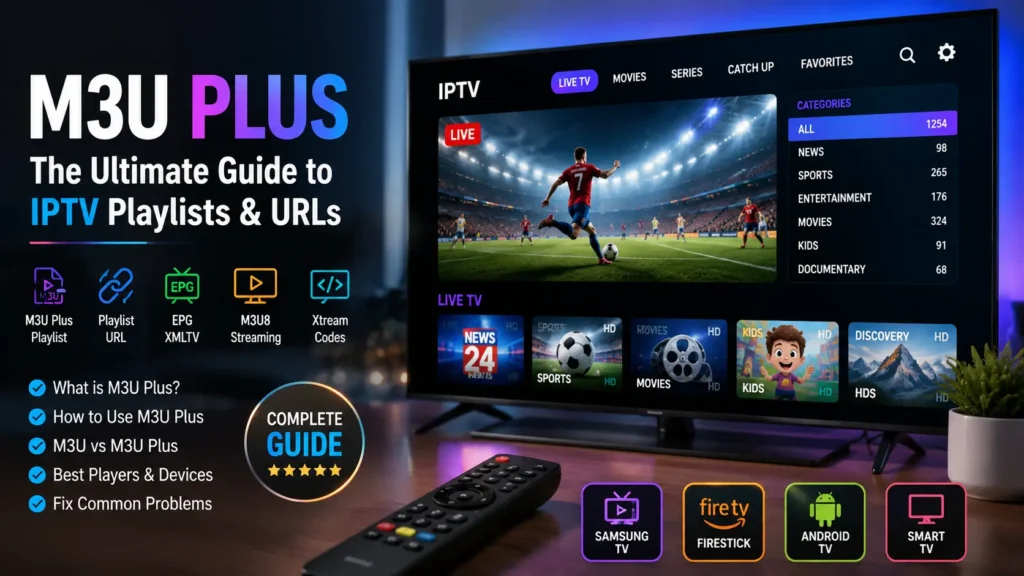
If you work with IPTV playlists, you have probably encountered terms such as M3U, M3U8, Xtream Codes, XMLTV, and M3U Plus. While these formats are related, they are not exactly the same. Understanding the differences can help you choose the right IPTV player, configure your playlist correctly, and troubleshoot problems such as missing EPG data, incorrect channel names, or buffering.
In this guide, we will explain what M3U Plus is, how an M3U Plus IPTV playlist works, what information it can contain, and how it compares with a standard M3U playlist. We will also cover M3U Plus playlist URLs, EPG/XMLTV metadata, M3U8 compatibility, IPTV players, Samsung TV, Firestick, Android TV, and common playlist problems.
Important: M3U Plus is a playlist/metadata format. It does not provide TV channels or an IPTV subscription by itself. You need a legitimate IPTV provider or your own authorized media streams.
What Is M3U Plus?
M3U Plus generally refers to an extended M3U playlist that contains additional metadata about IPTV streams.
A basic M3U playlist may contain little more than a list of media URLs. An extended IPTV playlist can include information such as:
- Channel name
- Channel ID
- Group/category
- EPG identifier
- Channel logo
- Stream URL
- Language information
- TV guide metadata
- Additional playback information
This extra information allows compatible IPTV players to display a much richer interface.
For example, instead of seeing only:
News Channel
https://example.com/stream.m3u8
an extended playlist can provide information that allows the player to display the channel logo, category, EPG information, and other metadata.
How Does M3U Plus Work?

The basic concept is simple:
IPTV Provider → M3U Plus Playlist → IPTV Player → Stream
The playlist acts as an organized list of media streams and their associated metadata.
When you load an M3U Plus playlist URL into a compatible IPTV player, the player reads the playlist and processes the available information.
Depending on the playlist and player, this can provide:
- Live TV categories
- Channel names
- Channel logos
- EPG associations
- VOD categories
- Movies
- Series
- Stream URLs
- Group information
The actual video is normally delivered separately through the stream URL contained in the playlist.
M3U vs M3U Plus
One of the most common questions is the difference between M3U and M3U Plus.
| Feature | Standard M3U | M3U Plus / Extended M3U |
|---|---|---|
| Playlist URLs | Yes | Yes |
| Channel names | Yes | Yes |
| Categories | Limited/optional | Usually supported |
| Channel logos | Limited | Commonly supported |
| EPG IDs | Limited | Commonly supported |
| Additional metadata | Limited | More extensive |
| IPTV player compatibility | Very high | Depends on player |
| Rich IPTV interface | Basic | Better metadata support |
In practice, M3U Plus is not necessarily a completely different file format. The term is commonly used to describe an extended M3U playlist containing additional IPTV metadata.
What Is an M3U Plus Playlist URL?

An M3U Plus playlist URL is a web address that points to an IPTV playlist hosted on a server.
A provider may give you a URL similar to:
https://example.com/playlist.m3uor:
https://example.com/get.php?username=USER&password=PASSWORD&type=m3u_plusThe exact URL depends on the provider’s infrastructure.
For security, never publish your real playlist URL, username, or password publicly. A playlist URL may contain credentials that provide access to your account.
M3U Plus Metadata
One of the biggest advantages of extended IPTV playlists is metadata.
Common metadata can include:
Channel Name
Identifies the channel displayed in the IPTV player.
Group Title
Organizes channels into categories such as:
- Sports
- News
- Movies
- Entertainment
- Kids
- Documentary
TVG ID
A TVG-ID can associate a channel with an EPG entry.
TVG Name
Provides a name used by some EPG systems.
TVG Logo
Provides a URL pointing to a channel logo.
Stream URL
The actual location of the media stream.
A simplified example could look like:
#EXTINF:-1 tvg-id="channel1" tvg-name="Example TV" group-title="News" tvg-logo="https://example.com/logo.png",Example TV
https://example.com/live/channel1.m3u8
The exact attributes supported can vary between providers and IPTV players.
M3U Plus and M3U8
M3U Plus and M3U8 are not the same thing.
M3U/M3U Plus generally describes playlist files and metadata, while M3U8 commonly refers to an UTF-8 encoded M3U playlist and is especially associated with HLS streaming.
An M3U Plus playlist may contain links to .m3u8 streams.
For example:
M3U Plus playlist
        ↓
Channel metadata
        ↓
M3U8 stream URL
        ↓
HLS video segments
        ↓
IPTV player
Therefore, an IPTV playlist can use M3U Plus metadata while the underlying video stream is delivered using HLS/M3U8.
M3U Plus and EPG
EPG is another important part of the IPTV experience.
EPG means Electronic Program Guide.
An EPG can display:
- Current program
- Upcoming programs
- Program descriptions
- Start and end times
- Channel schedules
An M3U Plus playlist may contain identifiers that allow an IPTV player to match channels with an external XMLTV EPG source.
This is why you may see terms such as:
- M3U Plus EPG
- M3U Plus XMLTV
- IPTV EPG
- XMLTV URL
- TVG-ID
- TVG-Name
For the EPG to work correctly, the channel identifiers in the playlist and EPG data generally need to correspond.
How to Add an M3U Plus Playlist

The exact process depends on your IPTV player.
In most applications, the process looks like this:
Step 1: Obtain Your Playlist
Use the M3U Plus playlist URL supplied by your legitimate IPTV provider or generated from your own media server.
Step 2: Open Your IPTV Player
Launch a compatible IPTV player on your device.
Step 3: Select Add Playlist
Look for an option such as:
- Add Playlist
- Add M3U
- Add URL
- Remote Playlist
- Import Playlist
Step 4: Enter the M3U Plus URL
Paste your playlist URL into the appropriate field.
Step 5: Save and Load
The application should download and process the playlist.
Step 6: Check Categories and EPG

Once loaded, check whether your channels, groups, logos, and EPG information appear correctly.
M3U Plus on Samsung TV
Many IPTV applications designed for Samsung Smart TVs can work with M3U-based playlists, depending on the specific application.
Samsung Smart TVs commonly use the Tizen operating system, so compatibility should always be checked for the specific IPTV player.
The general workflow is:
Install compatible player → Open playlist settings → Add M3U URL → Load playlist → Check EPG
Do not assume that every IPTV player supports every M3U Plus metadata field.
M3U Plus on Firestick
On Fire TV devices, compatibility depends primarily on the IPTV player you choose.
A compatible application may allow you to add:
- M3U URL
- M3U Plus playlist
- Xtream Codes credentials
- EPG URL
The interface and supported formats vary between applications.
M3U Plus on Android TV
Android TV provides a broad selection of IPTV players.
After installing a compatible application, you generally select M3U Playlist or Add Playlist, enter your playlist URL, and allow the application to process it.
Some applications may offer additional options for EPG, logos, categories, subtitles, and external video players.
Best M3U Plus Player
There is no single IPTV player that is automatically the best for everyone.
The right choice depends on your device and the features you need.
Popular IPTV players that may work with M3U-based playlists include:
- TiviMate
- IPTV Smarters
- Televizo
- OTT Navigator
- SmartOne IPTV
- IBO Player Pro
- Smart IPTV
- XCIPTV
- Kodi
- VLC
Always check the current documentation and supported playlist formats before choosing an application.
M3U Plus vs Xtream Codes
Another common comparison is M3U Plus vs Xtream Codes.
| Feature | M3U Plus | Xtream Codes |
|---|---|---|
| Playlist-based | Yes | No traditional playlist required |
| Username/password | Sometimes embedded in URL | Usually separate |
| EPG | Supported through metadata/external source | Commonly integrated through API |
| Categories | Supported | Supported |
| VOD | Can be represented | Commonly supported |
| Setup | URL-based | Server + username + password |
| Flexibility | High | High |
Xtream Codes is generally used as an authentication/API-based method, while M3U Plus is primarily playlist-based.
Neither is automatically “better.” The best option depends on the IPTV provider, player, and features you need.
M3U Plus Not Working
If your M3U Plus playlist is not working, check these common causes.
1. Incorrect URL
Make sure the complete URL was copied correctly.
2. Expired Playlist
Some playlist URLs are temporary or tied to an active subscription.
3. Server Problem
The IPTV server may temporarily be unavailable.
4. Player Compatibility
Your IPTV application may not support certain metadata or playlist structures.
5. EPG Problem
The playlist may work while the EPG fails because the EPG source or channel IDs are incorrect.
6. Network Issues
A weak Wi-Fi connection can cause buffering or streams to stop.
7. Incorrect Credentials
If the playlist URL contains authentication credentials, an incorrect username or password can prevent access.
M3U Plus Buffering
An M3U Plus playlist itself does not necessarily cause buffering.
Buffering can come from several parts of the streaming chain:
Device → Wi-Fi → Internet → CDN/Network → Origin Server → Stream
Possible improvements include:
- Use Ethernet when possible
- Improve Wi-Fi signal
- Restart the router
- Reduce network congestion
- Keep your IPTV application updated
- Use a compatible stream format
- Check whether the provider’s server is experiencing problems
For deeper technical information, see our guides about M3U8, CDN, Xtream Codes, and IPTV EPG.
M3U Plus and IPTV Security
Treat your IPTV playlist URL like a password if it contains authentication information.
Avoid:
- Posting your playlist URL publicly
- Sharing credentials in screenshots
- Uploading private URLs to unknown websites
- Using suspicious playlist generators
- Installing unknown IPTV APK files
A compromised playlist URL may expose your account to unauthorized access.
Is M3U Plus Legal?
M3U Plus itself is simply a playlist/metadata format. The legality depends on the content being accessed and whether you have authorization to access or distribute it.
Using an M3U playlist to access your own media library or properly licensed streams is different from accessing copyrighted content without permission.
Always use legitimate IPTV services and authorized content.
M3U Plus: Common Questions
What is M3U Plus?
M3U Plus generally refers to an extended M3U IPTV playlist containing additional metadata such as channel groups, logos, and EPG identifiers.
Is M3U Plus the same as M3U?
Not exactly. M3U Plus generally means an extended M3U playlist with additional IPTV metadata.
Can M3U Plus contain M3U8 streams?
Yes. An M3U Plus playlist can contain URLs pointing to M3U8/HLS streams.
Does M3U Plus provide IPTV channels?
No. It is a playlist format. The streams must come from your IPTV provider or authorized media source.
Does M3U Plus support EPG?
It can support EPG-related metadata, often through TVG identifiers and external XMLTV data.
Can I use M3U Plus on Samsung TV?
Potentially, depending on the IPTV player and its playlist-format support.
Can I use M3U Plus on Firestick?
Yes, with a compatible IPTV application.
Final Thoughts
M3U Plus is an important concept to understand if you regularly work with IPTV playlists. Instead of being simply a list of stream addresses, an extended M3U playlist can carry useful metadata that helps IPTV players organize channels, display logos, assign categories, and connect channels with EPG information.
Understanding the relationship between M3U, M3U Plus, M3U8, XMLTV EPG, and Xtream Codes makes IPTV configuration much easier. M3U Plus is mainly concerned with playlist structure and metadata, M3U8 is widely associated with HLS media delivery, XMLTV provides program-guide data, and Xtream Codes provides an alternative authentication/API-based way to organize IPTV content.
For beginners, the most important point is that M3U Plus is not an IPTV service itself. You need a legitimate source of streams and a compatible IPTV player. Once you understand how the playlist URL, metadata, EPG, and actual stream URLs work together, you can configure compatible IPTV applications more confidently and troubleshoot common problems more effectively.