If you are searching for VLC IPTV, IPTV to VLC, VLC Media Player IPTV, or how to add IPTV to VLC Player, you are in the right place.
VLC Media Player is one of the most flexible free media players available. It can play local media files as well as network streams, and official VideoLAN documentation confirms support across Windows, macOS, Linux, Android, iOS, and other platforms.
That makes VLC useful for IPTV users who already have a legal IPTV stream, M3U playlist, or direct streaming URL and want to play it without installing a specialized IPTV application.
However, there is an important distinction: VLC is a media player, not an IPTV provider. It does not supply channels, subscriptions, EPG data, or IPTV content by itself.
In this guide, we will explain how IPTV works with VLC, how to open an IPTV stream, how to use M3U playlists, EPG limitations, supported devices, common problems, safety, and whether VLC is a good IPTV player.
Important: Only use IPTV streams and playlists that you are legally entitled to access. VLC itself does not provide IPTV subscriptions or channels.
What Is VLC Media Player?
VLC Media Player is a free, open-source, cross-platform multimedia player developed by the VideoLAN project.
Unlike many basic video players, VLC can handle both local files and different types of streaming sources. VideoLAN describes VLC as a player and multimedia framework capable of playing multimedia files and various streaming protocols.
VLC can be used for:
- Video playback
- Audio playback
- Network streams
- M3U playlists
- Local media libraries
- DVDs and other media
- HLS and other network streaming technologies
- IPTV stream URLs
- Subtitles
- Multiple audio tracks
VLC is available for major platforms, including Windows, macOS, Linux, Android, iOS, and Apple TV.
This broad compatibility is one reason why VLC Media Player IPTV is such a common search topic.
Does VLC Support IPTV?
Can VLC Play IPTV?
Yes, VLC can play compatible IPTV streams and network streams.
The important word is compatible.
VLC does not function like a complete IPTV service. Instead, it acts as the playback software that receives a stream or playlist supplied by another source.
A simplified IPTV setup looks like this:
IPTV Service or Authorized Stream
↓
M3U Playlist / Stream URL
↓
VLC Media Player
↓
Video Playback
VLC’s official product information confirms that it supports streaming protocols and network streams.
Therefore, when someone searches for does VLC support IPTV, the most accurate answer is:
VLC can play compatible IPTV streams, but it does not provide IPTV content itself.
IPTV to VLC: How Does It Work?
The phrase IPTV to VLC generally means taking an IPTV stream or playlist and opening it through VLC.
There are two common situations.
Direct Stream URL
You have a single streaming URL.
For example:
https://example.com/live/stream.m3u8
You can open a compatible network stream in VLC.
M3U Playlist
You have an M3U playlist containing multiple media or stream entries.
An M3U playlist can contain references to multiple streams, allowing compatible software to display a list of available items.
VLC can work with playlists and network streams, although the exact experience can vary depending on the playlist structure and the platform.
How to Use VLC for IPTV
How to Add IPTV to VLC Player
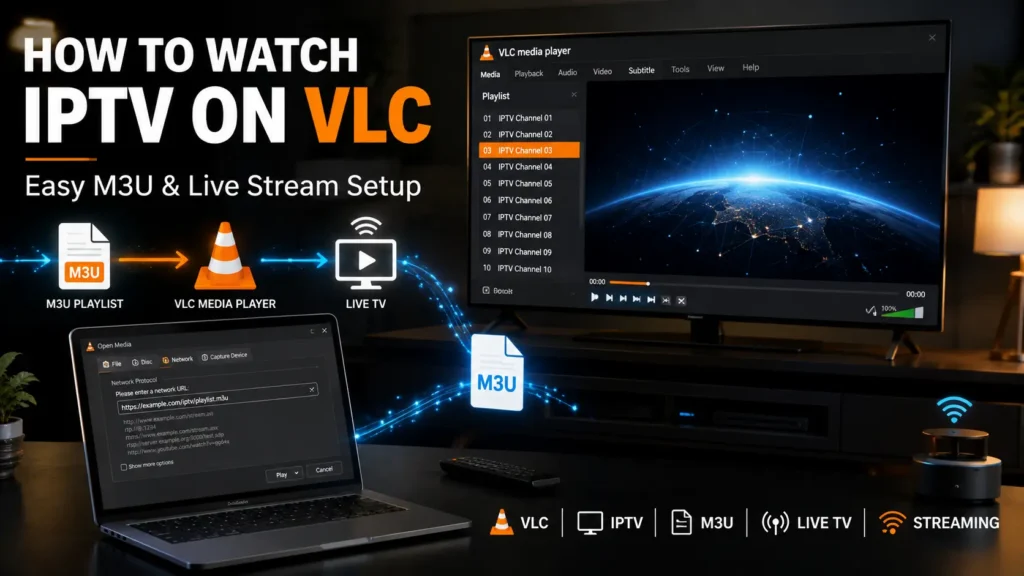
On the desktop version of VLC, the basic process for opening a network IPTV stream is straightforward.
Step 1: Install VLC
Download VLC from the official VideoLAN website rather than from an unknown third-party website.
The official VLC download page currently lists Windows, macOS, Linux, Android, iOS, and Apple TV versions.
Step 2: Open VLC
Launch VLC Media Player on your computer.
Step 3: Open the Network Stream Option
On desktop VLC, look for:
Media → Open Network Stream
This is the function used to provide VLC with a network streaming address.
Step 4: Enter Your Stream URL
Paste your authorized IPTV stream URL into the network address field.
Step 5: Select Play
Click Play.
If the URL is compatible and the server is available, VLC should begin playing the stream.
Why This Method Is Useful
You don’t necessarily need a dedicated IPTV application when you only want to test or play a compatible stream.
VLC gives you a simple playback environment without requiring a separate IPTV subscription or channel database.
How to Watch IPTV on VLC
How to Watch IPTV on VLC Player
The exact experience depends on whether you have a single stream URL or a playlist.
With a Direct Stream
- Open VLC.
- Select Media.
- Choose Open Network Stream.
- Enter the stream URL.
- Select Play.
With an M3U Playlist
You can open a compatible playlist through VLC’s playlist functionality.
Once loaded, VLC can display the items contained in the playlist.
This makes how to watch IPTV on VLC relatively simple for users who only need basic playback.
However, VLC does not necessarily provide the polished channel-management experience found in dedicated IPTV applications.
How to Add an M3U Playlist to VLC
VLC M3U IPTV Setup
M3U is one of the most important terms associated with IPTV and VLC.
An M3U playlist is essentially a text-based playlist containing references to media files or streams.
An IPTV M3U playlist can contain multiple stream entries.
Basic VLC M3U Workflow
- Obtain an M3U playlist from a legitimate source.
- Open VLC.
- Open the playlist or network-stream functionality.
- Select the M3U file or provide its URL when supported.
- Allow VLC to load the playlist.
- Select an available item to begin playback.
The exact interface can vary between VLC versions and operating systems.
VLC M3U vs IPTV Subscription
These are not the same thing.
M3U: A playlist containing media references.
IPTV subscription: A service or account providing authorized access to content.
VLC: The media player used to play compatible content.
Understanding this distinction prevents a lot of confusion when setting up VLC IPTV M3U.
How to Open an M3U File in VLC
If you have an M3U file stored locally, VLC can use it as a playlist.
A typical workflow is:
VLC → Media → Open File
Then select the M3U playlist.
Depending on the playlist, VLC may display multiple entries that you can select.
If the playlist contains network URLs, VLC will need access to those remote sources.
If some entries work and others do not, the issue may be with the individual stream rather than VLC itself.
How to Play an IPTV Stream on VLC
IPTV Stream VLC Setup
If you have a direct IPTV stream URL, VLC can be used as the playback client.
The process is generally:
Open VLC
↓
Media
↓
Open Network Stream
↓
Enter Stream URL
↓
Play
VLC’s ability to handle network streams is one of its core strengths. VideoLAN’s official Android documentation, for example, specifically lists support for network streams including HLS and DASH.
VLC IPTV M3U vs M3U8
The terms M3U and M3U8 are related but should not be treated as identical.
M3U
A playlist format commonly used to organize media references.
M3U8
An UTF-8 encoded playlist format frequently associated with HTTP Live Streaming (HLS).
VLC supports many streaming technologies, and its Android documentation specifically mentions HLS support.
However, whether a particular IPTV stream works depends on factors such as:
- Stream protocol
- Server availability
- Authentication
- Playlist structure
- Codec compatibility
- Network connection
- Device performance
So VLC M3U8 compatibility should be evaluated based on the actual stream rather than assuming every IPTV URL will work.
Does VLC Support EPG?
EPG VLC IPTV
This is where VLC differs from dedicated IPTV players.
EPG, or Electronic Program Guide, provides information such as:
- Current programs
- Upcoming programs
- Program times
- Program descriptions
- Channel schedules
VLC’s main purpose is media playback and streaming rather than providing a complete IPTV channel-management interface.
Therefore, while an IPTV playlist may contain metadata, you should not expect VLC to provide the same polished EPG experience as a dedicated IPTV application.
If EPG is one of your most important requirements, a dedicated IPTV player may be a better choice.
Is VLC Media Player Safe?
Is VLC Player Safe?
Yes, VLC is generally considered a safe application when downloaded from the official VideoLAN sources.
VideoLAN describes VLC as free and open-source and states that its official VLC distribution contains no spyware, advertisements, or user tracking.
The bigger security consideration for IPTV users is often the source they connect to, not VLC itself.
For example, an unknown streaming URL could potentially lead to:
- Malicious websites
- Phishing attempts
- Untrusted downloads
- Suspicious redirects
For that reason:
Download VLC from VideoLAN.
Use IPTV sources you trust and are authorized to access.
Never install unknown VLC modifications just because an IPTV website recommends them.
Is VLC Player Free?
Yes.
VLC is free and open-source software. VideoLAN officially describes VLC as completely free.
There is no requirement to purchase a premium VLC subscription to play ordinary media or compatible network streams.
This is one of VLC’s biggest advantages for users who want a simple IPTV playback tool.
VLC IPTV on Windows
Windows is one of the most convenient platforms for using VLC with IPTV.
You can use VLC to:
- Open network streams
- Play M3U playlists
- Play local video files
- Test individual stream URLs
- Manage playlists
- Adjust playback settings
For many users, VLC IPTV Windows is especially useful for testing whether an IPTV stream actually works before configuring it on a Smart TV or streaming device.
VLC IPTV on Mac
VLC is also available for macOS, including Apple silicon Macs. VideoLAN’s official download page lists macOS and Apple silicon versions.
The general IPTV workflow is similar:
VLC → Open Network Stream → Stream URL → Play
Mac users can also use VLC with local playlists and supported network sources.
VLC IPTV on Linux
VLC is available on Linux distributions and supports network streaming.
This makes VLC a practical option for users who run IPTV testing or media playback on Linux.
Because Linux distributions differ, installation methods can vary. It is best to use your distribution’s trusted package manager or the official VideoLAN resources.
VLC IPTV on Android
VLC for Android is more than a basic video player.
VideoLAN states that VLC for Android supports:
- Network streams
- HLS
- DASH
- NAS browsing
- Media libraries
- Hardware decoding
- Android TV
- Subtitles
- Multiple audio tracks
This makes VLC IPTV Android a practical option for users who want to play compatible IPTV streams on Android devices.
However, the Android interface is different from desktop VLC, so instructions should not be copied blindly from Windows tutorials.
VLC IPTV on iPhone and iPad
VLC is also available for iOS and iPadOS.
The official VideoLAN page lists support for network streams, including HLS, MMS, and RTSP, along with SMB, NFS, FTP, SFTP, UPnP/DLNA and other sources.
Therefore, VLC IPTV iPhone and VLC IPTV iPad are possible for compatible streams, although the available controls and playlist workflows differ from desktop VLC.
VLC IPTV on Apple TV
VideoLAN also provides VLC for Apple TV through its Apple-platform offerings.
However, Apple TV users looking for a traditional IPTV experience should understand the difference between:
VLC as a media player
and
a dedicated IPTV application with channel lists and EPG.
VLC is primarily designed around media playback and streaming rather than being a complete IPTV subscription-management platform.
Is VLC a Good IPTV Player?
VLC vs Dedicated IPTV Players
This depends on what you expect from an IPTV player.
VLC Is Good If You Want:
- Free software
- Simple playback
- Network stream support
- M3U playlist playback
- Broad format compatibility
- Multiple operating systems
- A lightweight media player
A Dedicated IPTV Player May Be Better If You Want:
- Advanced EPG
- Channel categories
- Favorites
- Automatic channel logos
- IPTV-specific interfaces
- Catch-up features
- Recording
- Multi-provider management
- Advanced TV navigation
This is why the answer to “Is VLC good for IPTV?” is not simply yes or no.
VLC is excellent as a general-purpose stream and media player, but it is not designed to replicate every feature of a dedicated IPTV platform.
ExoPlayer vs VLC Player for IPTV
ExoPlayer and VLC are both powerful technologies, but they serve somewhat different roles.
VLC is a complete multimedia player available to end users.
ExoPlayer is primarily a media playback framework used by Android applications.
Therefore, comparing ExoPlayer vs VLC Player IPTV is not always a direct comparison.
VLC
Best suited for:
- End users
- Desktop streaming
- Media playback
- Testing stream URLs
- Playing playlists
ExoPlayer
Best suited for:
- Android developers
- Custom applications
- Application-level streaming
- Developers who need control over playback behavior
For a normal IPTV viewer, VLC is much easier to install and use.
VLC IPTV vs TiviMate
TiviMate is designed specifically around IPTV-style viewing, while VLC is a general-purpose media player.
VLC
- General media player
- Free
- Broad format support
- Network streams
- M3U playlists
- Multi-platform
TiviMate
- IPTV-focused
- TV-oriented interface
- EPG-focused
- Channel organization
- Designed for compatible TV platforms
If you simply want to open a stream, VLC may be enough.
If you want a complete television-style IPTV interface, a dedicated IPTV application may be more appropriate.
VLC IPTV vs Kodi
Kodi is a broader home-media platform with a large ecosystem of add-ons and integrations.
VLC is simpler.
Choose VLC if:
You want a straightforward media player.
Choose Kodi if:
You want a customizable home entertainment center with additional media-management capabilities.
Again, the best choice depends on whether your goal is simple playback or a complete media platform.
VLC IPTV Troubleshooting
Even when your setup is correct, an IPTV stream may fail.
Here are the most common problems.
VLC IPTV Not Working
If VLC IPTV is not working, check:
- Is the stream URL correct?
- Is the IPTV server online?
- Does your subscription or authorization remain active?
- Does the stream require authentication?
- Does the URL work in another compatible player?
- Is your internet connection stable?
- Is the stream compatible with your VLC version?
Don’t immediately assume that VLC is the problem.
VLC M3U Playlist Not Loading
If your VLC M3U playlist does not load:
- Check the URL.
- Check whether the playlist is still active.
- Try opening the M3U file locally.
- Check your internet connection.
- Test a known working stream.
- Update VLC from an official source.
- Make sure the playlist itself is valid.
A broken playlist can look like a VLC problem when the actual issue is the source.
VLC IPTV Buffering
Buffering can have several causes.
Possible causes include:
- Slow internet
- Wi-Fi interference
- Overloaded IPTV server
- High-bitrate stream
- Long network latency
- Device limitations
- Incorrect VLC caching configuration
If other streaming services work normally but one particular IPTV stream constantly buffers, the source itself may be the problem.
VLC IPTV Stream Freezing
If a stream freezes:
Test another stream
If only one stream freezes, the source may be unstable.
Test your network
Try another high-quality streaming service.
Test another device
If the same URL freezes everywhere, the server is a more likely cause.
Check VLC
Make sure you’re running a current official version.
VLC IPTV Black Screen
A black screen can result from:
- Unsupported codec
- Broken stream
- Authentication problem
- Server-side issue
- Hardware-decoding issue
- Incorrect stream format
Try another known-compatible stream before changing advanced settings.
This helps identify whether the problem is VLC, the device, or the stream itself.
Best VLC Settings for IPTV
There is no single “best VLC IPTV setting” that works for every stream.
The correct settings depend on:
- Video resolution
- Codec
- Bitrate
- Network speed
- Device hardware
- Streaming protocol
For most users, the best approach is to start with VLC’s default settings.
Only change advanced options when you have a specific problem such as buffering, decoding issues, or audio/video synchronization.
This is much safer than copying a random “best IPTV VLC settings” configuration from the internet.
VLC IPTV: Advantages and Disadvantages
Advantages
- Free
- Open source
- No IPTV subscription required for the player
- Supports network streams
- Supports many media formats
- Supports playlists
- Available across many platforms
- Good for testing IPTV streams
- Simple interface
- Strong developer ecosystem
- Android TV support
- HLS support on supported platforms
VideoLAN confirms broad platform support and network-stream functionality.
Disadvantages
- Not a dedicated IPTV application
- Limited IPTV-specific features
- Not focused on EPG management
- No IPTV provider included
- No channels supplied
- Interface can feel basic for live TV
- Advanced IPTV features may require another application
Who Should Use VLC for IPTV?
VLC is particularly useful for:
Beginners
If you only want to test whether an IPTV stream works, VLC is simple.
Desktop Users
Windows, Mac, and Linux users can quickly test network streams.
IPTV Troubleshooting
VLC is useful for determining whether a stream works independently of a dedicated IPTV application.
Developers
VLC and its underlying LibVLC technology provide a flexible multimedia foundation. VideoLAN describes LibVLC as the core engine behind VLC and notes support for numerous media formats, streaming protocols, platforms, network sources, HDR, and hardware-accelerated decoding.
Who Should Choose a Dedicated IPTV Player?
A dedicated IPTV player may be better if your primary goal is:
- Live TV
- EPG
- Channel categories
- Favorites
- Channel logos
- TV-style navigation
- Multiple IPTV playlists
- Advanced IPTV features
In other words:
VLC = flexible media player
Dedicated IPTV app = television-focused experience
Neither approach is universally better.
VLC IPTV: Best Practices
For the best experience:
1. Use the Official VLC Version
Download VLC from VideoLAN rather than unknown websites.
2. Use Legitimate IPTV Sources
VLC does not verify whether a stream is legally licensed.
You are responsible for ensuring that you have permission to access the content.
3. Test the Stream Before Blaming VLC
A broken IPTV server can produce the same symptoms as a broken player.
4. Use Ethernet When Possible
For high-bitrate streams, a wired connection can be more stable than congested Wi-Fi.
5. Keep VLC Updated
Updates can include bug fixes, security improvements, and compatibility changes.
6. Avoid Unofficial Modified VLC Builds
There is usually no reason to install a modified VLC version simply to play IPTV.
Frequently Asked Questions
Does VLC support IPTV?
Yes. VLC can play compatible IPTV and network streams, but it does not provide IPTV channels or subscriptions itself.
Can VLC play M3U playlists?
Yes. VLC can work with playlist files and network streams, making it useful for compatible IPTV M3U playlists.
How do I add IPTV to VLC Player?
On desktop VLC, open Media → Open Network Stream, enter a compatible stream URL, and select Play.
How do I watch IPTV on VLC?
You can open a compatible IPTV network stream or playlist in VLC and select the desired media item.
What is VLC M3U?
VLC M3U refers to using an M3U playlist with VLC. The M3U playlist contains references to media or streaming resources.
Does VLC support EPG?
VLC is not primarily designed as an IPTV EPG application. A dedicated IPTV player generally provides a more complete electronic program guide experience.
Is VLC Media Player safe?
The official VLC application from VideoLAN is free and open-source. VideoLAN states that VLC contains no spyware, advertisements, or user tracking.
Is VLC Player free?
Yes. VLC is free and open-source software.
Can VLC play M3U8?
VLC supports network streaming technologies, including HLS on supported platforms.
Can VLC play IPTV on Android?
Yes, VLC for Android supports network streams, including HLS and DASH, and also supports Android TV.
Is VLC better than a dedicated IPTV player?
Not necessarily. VLC is excellent for straightforward stream playback, while dedicated IPTV players generally offer more live-TV and EPG features.
Can I use VLC without an IPTV subscription?
Yes. VLC itself is free and does not require an IPTV subscription. However, if you want to access subscription-based IPTV content, you need an authorized source separately.
Final Verdict: Is VLC Good for IPTV?
Yes, VLC is a powerful and convenient option for playing compatible IPTV streams, especially if you want a free and flexible media player.
Its biggest advantages are broad platform support, network-stream playback, playlist functionality, format compatibility, and its open-source nature. VideoLAN officially lists VLC for Windows, macOS, Linux, Android, iOS, Apple TV, and other platforms.
But VLC is not a complete IPTV service.
It does not provide:
- IPTV subscriptions
- TV channels
- EPG data
- Channel packages
- IPTV servers
Instead, VLC sits at the player layer:
Authorized IPTV Source → M3U/Stream → VLC → Your Device
If you want a simple way to test or watch compatible IPTV streams, VLC is an excellent choice.
If you want a full television-style experience with advanced EPG, favorites, channel groups, catch-up, and IPTV-specific navigation, a dedicated IPTV player may be a better fit.
The key is choosing the tool based on what you actually need—not simply choosing the most popular player.