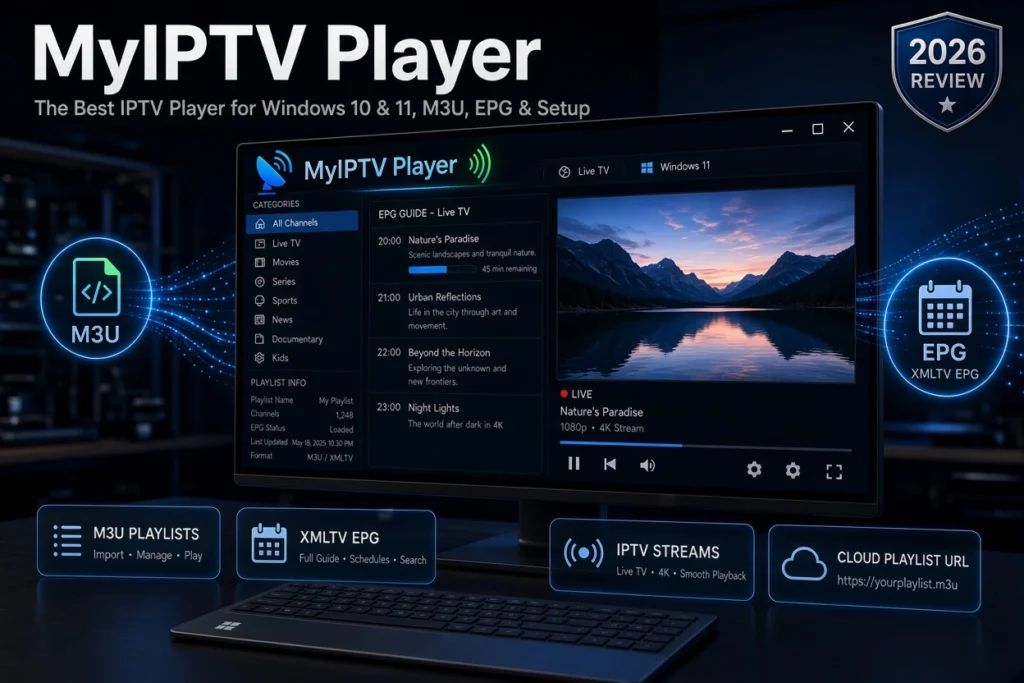
If you are looking for a simple way to watch IPTV on a Windows computer, MyIPTV Player is one of the applications worth considering. The player is designed to work with IPTV playlists and electronic program guides (EPG), giving users a convenient way to organize and watch live TV streams from a compatible IPTV provider.
Unlike an IPTV service, MyIPTV Player does not provide TV channels or IPTV subscriptions by itself. Instead, it acts as a media player that allows you to load your own compatible IPTV playlist, such as an M3U playlist, and configure an EPG source when available.
In this MyIPTV Player Review, we will explain what the application is, how MyIPTV Player IPTV works, how to install and set it up on Windows 10 and Windows 11, how to add an M3U playlist and EPG, how the login process works, and what to do when MyIPTV Player is not working.
Important: MyIPTV Player is an IPTV player, not an IPTV provider. You need your own legitimate IPTV subscription or playlist to access content. Always use IPTV services and streams that you are legally authorized to access.
What Is MyIPTV Player?
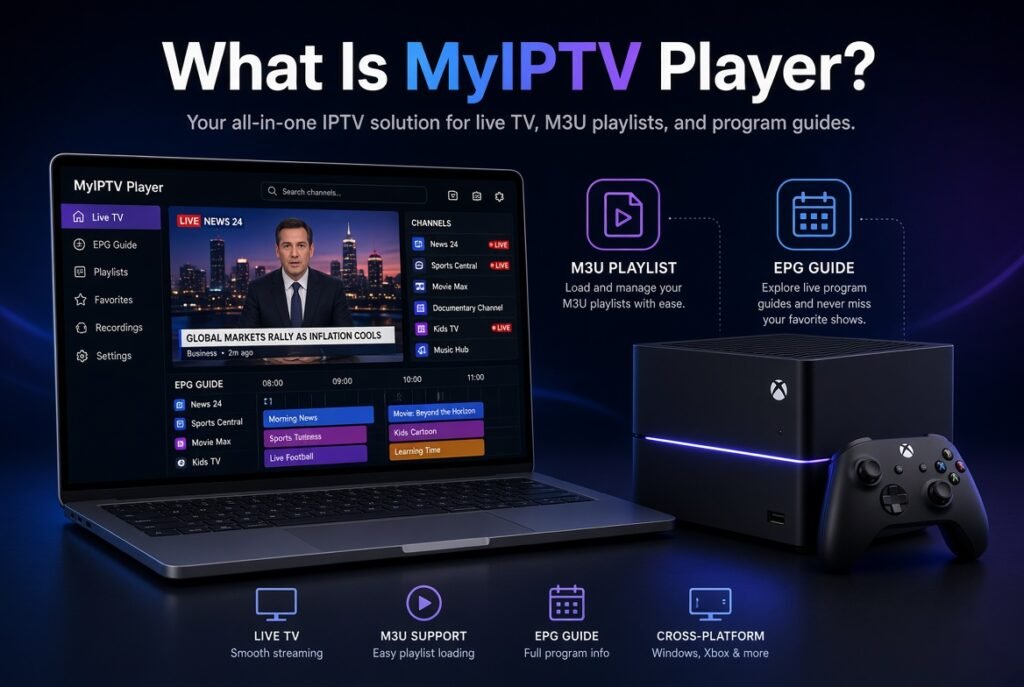
MyIPTV Player is an IPTV media player designed primarily for Windows devices. It allows users to load IPTV playlists and organize live television streams through a dedicated interface.
The application can be useful for people who already have an IPTV playlist and want to watch it on a Windows PC or compatible device without using a browser.
The basic concept is straightforward:
IPTV Provider → M3U Playlist → MyIPTV Player → Live TV
The IPTV provider supplies the playlist or access information, while MyIPTV Player handles playback and organization.
Depending on the playlist and configuration, users can also work with EPG information to display program schedules alongside available channels.
MyIPTV Player Review
So, is MyIPTV Player a good IPTV player?
For Windows users who want a relatively straightforward IPTV application, it can be a practical option. Its biggest advantage is that it focuses specifically on IPTV playlist playback instead of trying to combine IPTV with a large number of unrelated streaming features.
MyIPTV Player Pros
- Designed specifically for IPTV playback
- Supports IPTV playlists
- M3U playlist support
- EPG functionality
- Suitable for Windows users
- Simple IPTV organization
- Supports live TV streaming
- Can work with remote playlist sources
- Useful for users who already have their own IPTV service
MyIPTV Player Cons
- It does not provide IPTV subscriptions
- The experience depends heavily on the quality of your IPTV provider
- Incorrect M3U URLs can prevent playlists from loading
- EPG configuration may require additional setup
- Playback problems can be caused by the IPTV source rather than the player
Overall, MyIPTV Player is more suitable for users who already understand the basics of IPTV playlists and want a dedicated Windows IPTV player.
MyIPTV Player IPTV: How Does It Work?
Using MyIPTV Player IPTV is based on the same basic principle as many other IPTV players.
You need three main components:
- An IPTV provider or legal IPTV source
- An M3U playlist or compatible playlist information
- MyIPTV Player installed on your supported Windows device
After obtaining your playlist, you add it to MyIPTV Player. The application then reads the playlist and displays the available content.
If your IPTV provider supplies an EPG URL, you can also configure it separately to display program information.
This means MyIPTV Player itself is not responsible for providing channels.
MyIPTV Player vs IPTV Provider
This distinction is important.
An IPTV provider supplies the streaming service or playlist.
An IPTV player plays the content supplied by the provider.
For example:
IPTV Provider → Provides playlist/streams
MyIPTV Player → Plays and organizes the playlist
Therefore, searching for a MyIPTV Player login does not necessarily mean that you need a separate MyIPTV Player subscription.
MyIPTV Player Microsoft Store
One of the most important search intents around the application is MyIPTV Player Microsoft Store.
Windows users commonly look for the application through Microsoft’s official app ecosystem rather than downloading software from unknown third-party websites.
When installing any IPTV application, it is always preferable to use an official or trusted distribution source whenever available. This reduces the risk of downloading modified or potentially unsafe software.
Before installing MyIPTV Player, make sure your Windows version is compatible and that you are downloading the legitimate application.
MyIPTV Player Windows 10
MyIPTV Player Windows 10 is a popular search query because Windows 10 remains widely used.
If you are running Windows 10, the general setup process involves:
- Install MyIPTV Player.
- Open the application.
- Locate the playlist section.
- Add your IPTV playlist.
- Enter the required playlist information.
- Add an EPG source if your provider supplies one.
- Save the configuration.
- Load the available channels.
- Select a channel to begin playback.
Your exact interface may vary depending on the version of the application.
MyIPTV Player Windows 11
The same general concept applies to MyIPTV Player Windows 11.
Windows 11 users can use MyIPTV Player to manage compatible IPTV playlists and watch available streams on their computer.
After installing the application, the most important step is adding a valid IPTV playlist.
If the playlist is correctly formatted and the IPTV source is online, the application should be able to retrieve the available entries.
If channels do not appear, don’t immediately assume that the player is broken. The problem may be related to the playlist URL, authentication information, expired subscription, server availability, or network connection.
MyIPTV Player Setup Guide
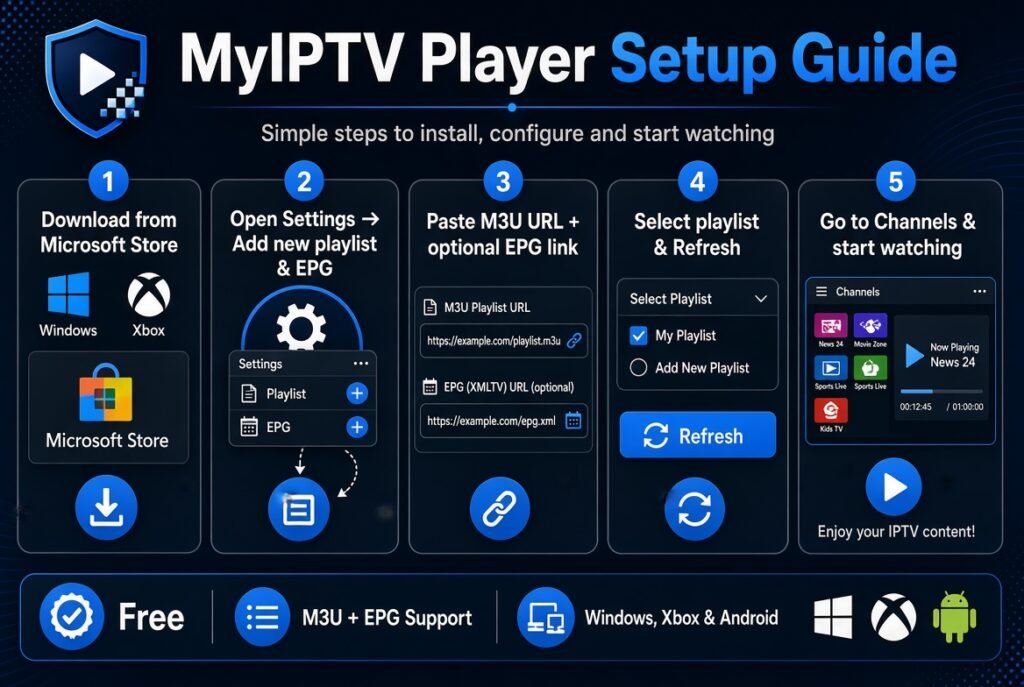
Setting up MyIPTV Player is relatively simple once you have a compatible IPTV playlist.
Step 1: Install MyIPTV Player
Download and install the legitimate version of MyIPTV Player from a trusted source.
After installation, launch the application.
Step 2: Prepare Your IPTV Playlist
Your IPTV provider may give you an M3U playlist URL or another supported playlist format.
An M3U URL generally looks similar to:
https://example.com/playlist.m3u
The actual URL will be provided by your IPTV service.
Step 3: Add the Playlist
Open the playlist configuration area inside MyIPTV Player.
Depending on the application version, you may be able to use either a local playlist file or a remote playlist URL.
Enter the required information carefully.
Step 4: Save the Playlist
Save your configuration and allow the application to process the playlist.
A large playlist may take some time to load depending on your internet connection and the server providing the data.
Step 5: Add EPG
If your provider gives you an EPG URL, add it through the EPG configuration section.
EPG information can provide:
- Program titles
- Start times
- End times
- Program descriptions
- Current and upcoming programming
Step 6: Start Watching
Once your playlist has loaded successfully, browse the available categories and select a stream.
That’s the basic MyIPTV Player setup process.
How to Add M3U to MyIPTV Player
One of the most important features for IPTV users is MyIPTV Player M3U support.
An M3U playlist contains information that tells an IPTV player where streaming resources are located.
To add an M3U playlist:
- Open MyIPTV Player.
- Go to the playlist section.
- Select the option to add a playlist.
- Choose a remote playlist or local M3U file.
- Enter your M3U URL or select your local file.
- Give the playlist a recognizable name.
- Save the configuration.
- Refresh or reload the playlist.
Once successfully imported, the available entries should appear inside the application.
How to Add IPTV Playlist to MyIPTV Player
The process is essentially the same when adding a compatible IPTV playlist.
You need valid playlist information from your IPTV provider.
If the playlist requires credentials, use only the credentials supplied to you by the provider.
Never share your personal IPTV credentials publicly.
MyIPTV Player EPG Setup
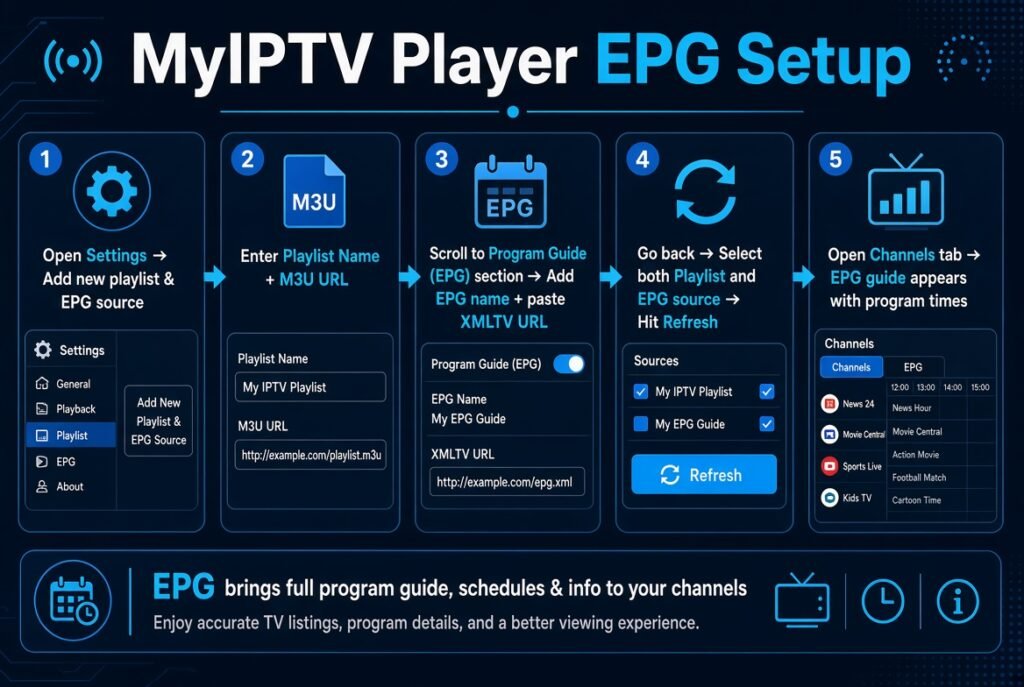
The MyIPTV Player EPG feature can make IPTV navigation significantly easier.
EPG stands for Electronic Program Guide. It provides information about scheduled programming.
Without an EPG, you may only see channel names.
With a properly configured EPG, you can potentially see:
- Current programs
- Upcoming programs
- Program schedules
- Descriptions
- Start and end times
How to Add EPG to MyIPTV Player
If your IPTV provider supplies an XMLTV or compatible EPG URL:
- Open MyIPTV Player.
- Navigate to the EPG settings.
- Add the EPG URL.
- Save the configuration.
- Refresh the EPG data.
- Return to the channel list.
- Check whether program information is displayed.
The EPG must correspond correctly with the channel information in your playlist.
MyIPTV Player XMLTV
XMLTV is a common format used for electronic program guide data.
An IPTV provider may supply an XMLTV EPG URL separately from your M3U playlist.
This creates two different sources:
M3U → Channel/stream information
XMLTV → Program schedule information
If your channels work but the EPG does not appear, the problem may be with the EPG URL, XMLTV data, channel matching, or the provider’s EPG service.
MyIPTV Player Login: Do You Need an Account?
The keyword MyIPTV Player Login can be confusing.
MyIPTV Player should not automatically be treated as an IPTV subscription provider that gives you a username and password.
In many IPTV setups, login credentials belong to the IPTV service, not the player.
For example, your IPTV provider may give you:
- Username
- Password
- Server URL
- M3U URL
- EPG URL
These credentials are used to access your IPTV service.
The player simply uses the information required to load your playlist or stream.
MyIPTV Player Login Not Working
If you cannot load your IPTV content, check:
- Username and password
- M3U URL
- Server URL
- Subscription status
- Internet connection
- IPTV server availability
- Playlist expiration
- Incorrect characters in the URL
If other applications also fail to load the same IPTV playlist, the problem is more likely related to the IPTV service rather than MyIPTV Player.
How to Use MyIPTV Player
For beginners, the basic workflow is easy:
Install → Add Playlist → Configure EPG → Load Channels → Play
Once your playlist is imported, you can browse available categories and select content.
The quality of playback depends on several factors, including your internet connection, the streaming source, server performance, and video quality.
MyIPTV Player Not Working: Common Fixes
If MyIPTV Player is not working, don’t panic. Several common problems can cause playback or playlist errors.
1. Check Your Internet Connection
Open another website or streaming service to make sure your internet connection is working properly.
2. Check the M3U URL
A single incorrect character can prevent a playlist from loading.
Copy the URL again and make sure there are no spaces before or after it.
3. Check Your IPTV Subscription
An expired IPTV subscription can cause channels to stop working.
Contact your IPTV provider if you believe your account has expired.
4. Refresh the Playlist
Try refreshing or reloading your playlist.
This is especially useful when the provider has recently updated the playlist.
5. Check the EPG Separately
If channels are working but the guide is empty, the problem may be related specifically to your EPG source.
6. Test Another Stream
If only one stream fails while other streams work, the problem may be with that particular source.
7. Restart the Application
Close MyIPTV Player completely and launch it again.
8. Check for Application Updates
Using an outdated version may cause compatibility or playback problems.
MyIPTV Player EPG Not Working
A common problem is MyIPTV Player EPG not working.
If the EPG does not load while channels work correctly, check:
- EPG URL
- XMLTV compatibility
- Channel matching
- Provider EPG availability
- Internet connection
- Playlist configuration
Also remember that not every IPTV playlist includes EPG data.
If your provider does not supply an EPG source, the player may not be able to display program information automatically.
MyIPTV Player M3U Not Working
If MyIPTV Player M3U is not working, start with the playlist itself.
Check whether:
- The URL is correct.
- Your subscription is active.
- The playlist is accessible.
- The provider’s server is online.
- Your internet connection works.
- The M3U file is valid.
- The playlist has not expired.
If possible, test the same playlist with another compatible IPTV player. This can help determine whether the issue is with the playlist or the application.
MyIPTV Player Buffering Problems
Buffering does not always mean that the IPTV player is the problem.
Common causes include:
- Slow internet connection
- Wi-Fi interference
- High network congestion
- IPTV server overload
- Poor stream quality
- Geographic routing issues
- An unstable IPTV source
Try restarting your router and testing another stream.
If only one source constantly buffers while others work normally, the problem may be specific to that stream.
Is MyIPTV Player the Best IPTV Player for Windows?
Whether MyIPTV Player is the best IPTV player for Windows depends on what you need.
It can be a good choice if your priorities are:
- IPTV playlist support
- M3U compatibility
- EPG functionality
- Windows compatibility
- Simple IPTV playback
- Managing your own IPTV playlist
However, users who want advanced customization, different interfaces, multi-device support, or additional media-center features may prefer alternative IPTV players.
Therefore, rather than calling one application universally the best, it is better to choose the player that matches your device and IPTV setup.
MyIPTV Player Alternatives
If MyIPTV Player does not meet your requirements, there are several other IPTV players you can investigate.
Popular alternatives may include:
- VLC Media Player
- Kodi
- IPTV Smarters
- TiviMate
- IPTVX
The right choice depends on your operating system, playlist format, EPG requirements, interface preferences, and desired features.
MyIPTV Player vs VLC
MyIPTV Player vs VLC is an interesting comparison.
VLC is a general-purpose media player that supports many video and streaming formats.
MyIPTV Player, on the other hand, is specifically designed around IPTV playlist management.
MyIPTV Player
Best suited for users who want:
- IPTV playlists
- EPG
- IPTV-oriented organization
- Dedicated IPTV functionality
VLC
Best suited for users who want:
- General media playback
- Local video files
- Network streams
- Broad multimedia format support
If your primary goal is IPTV playlist management, a dedicated IPTV player may provide a more convenient experience than a general media player.
MyIPTV Player VOD
Some IPTV users also search for MyIPTV Player VOD because modern IPTV services can include video-on-demand content.
However, VOD availability depends on the playlist and the functionality supported by the specific application version.
You should not assume that every IPTV playlist contains VOD content.
If your provider offers legitimate VOD access, check whether the supplied playlist and MyIPTV Player version support the required format.
MyIPTV Player App: Who Is It For?
The MyIPTV Player app is mainly interesting for users who want to watch IPTV through a Windows environment.
It may be suitable for:
- IPTV beginners
- Windows users
- Users with M3U playlists
- Users who need EPG support
- People who want a dedicated IPTV player
- Users who prefer IPTV playback on a PC
It is less suitable for someone looking for an IPTV subscription because the application itself does not function as an IPTV provider.
Important Things to Know Before Using MyIPTV Player
Before using MyIPTV Player, remember these important points:
1. MyIPTV Player is a player, not a provider.
It does not automatically give you TV channels or an IPTV subscription.
2. You need a legitimate IPTV source.
Use only streams and subscriptions that you are legally authorized to access.
3. M3U and EPG are different.
M3U generally provides playlist/stream information, while EPG provides program-guide information.
4. Buffering is not always caused by the player.
Your internet connection and IPTV server can have a major impact on streaming quality.
5. Keep your credentials private.
Never publish your IPTV username, password, M3U URL, or other private access information.
Final Verdict: Is MyIPTV Player Worth Using?
After looking at its IPTV-focused features, MyIPTV Player can be a useful choice for Windows users who want a straightforward way to manage and watch compatible IPTV playlists.
Its biggest strengths are its IPTV-oriented workflow, playlist support, EPG functionality, and suitability for Windows environments.
The setup is relatively simple:
Install MyIPTV Player → Add M3U Playlist → Add EPG → Load Channels → Start Streaming
However, the overall experience depends heavily on the quality and reliability of the IPTV source you use.
If you already have a legitimate IPTV subscription with an M3U playlist and want a Windows-focused IPTV player, MyIPTV Player is worth considering.
Frequently Asked Questions
What is MyIPTV Player?
MyIPTV Player is an IPTV media player that allows users to load compatible IPTV playlists and watch available streams. It does not provide IPTV subscriptions by itself.
Is MyIPTV Player free?
Availability and pricing can depend on the version and distribution method. Always check the current official listing before installing or purchasing the application.
Does MyIPTV Player support M3U?
Yes. MyIPTV Player M3U functionality allows users to load compatible IPTV playlists through supported playlist sources.
Does MyIPTV Player support EPG?
Yes, EPG functionality is one of the important features associated with MyIPTV Player. Users can configure compatible EPG information when it is provided by their IPTV source.
How do I add M3U to MyIPTV Player?
Open the playlist settings, add your remote M3U URL or compatible local playlist, save the configuration, and reload the playlist.
How do I add EPG to MyIPTV Player?
Open the EPG configuration area and enter the compatible EPG/XMLTV URL supplied by your IPTV provider. Save the settings and refresh the EPG data.
Does MyIPTV Player work on Windows 10?
MyIPTV Player is associated with Windows platforms, including Windows 10. Always verify the current application requirements before installation.
Does MyIPTV Player work on Windows 11?
Yes, MyIPTV Player can be used in Windows 11 environments when the installed version is compatible with the operating system.
Why is MyIPTV Player not working?
Possible causes include an invalid M3U URL, expired IPTV subscription, unavailable server, incorrect credentials, network problems, or an incompatible playlist.
Why is MyIPTV Player EPG not working?
Check your EPG URL, XMLTV source, channel matching, internet connection, and whether your IPTV provider actually supplies EPG data.
Does MyIPTV Player provide IPTV channels?
No. MyIPTV Player is an IPTV player. You need your own legitimate IPTV source or subscription.
Is MyIPTV Player the best IPTV player for Windows?
It can be a good option for Windows users who prioritize IPTV playlists and EPG, but the best IPTV player depends on your specific requirements and preferred features.