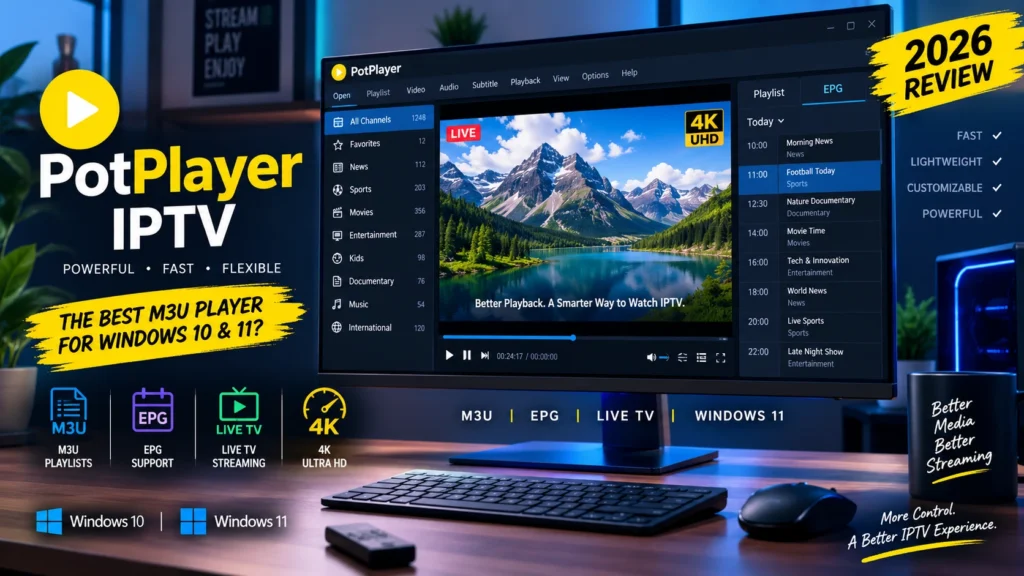
If you are looking for a flexible way to watch IPTV on a Windows computer, PotPlayer is an interesting option to consider. Originally designed as a powerful multimedia player, PotPlayer can also be used with compatible IPTV streams and M3U playlists, making it useful for users who want to watch live TV content on a PC.
In this complete PotPlayer IPTV review, we will cover everything you need to know, including PotPlayer IPTV M3U, how to use PotPlayer for IPTV, Windows 10 and Windows 11 compatibility, the PotPlayer interface, safety, streaming quality, troubleshooting, and PotPlayer vs VLC.
Important: PotPlayer is a media player, not an IPTV provider. It does not provide IPTV subscriptions or channels. You need your own legitimate IPTV service, M3U playlist, or streaming source that you are authorized to use.
What Is PotPlayer?

PotPlayer is a multimedia player designed for playing video and audio content on computers. It is known for supporting a wide range of media formats, playback options, subtitles, customization features, and streaming capabilities.
For IPTV users, one of its most interesting capabilities is the ability to work with network streams and playlists. This means that users who have a compatible IPTV M3U playlist can potentially use PotPlayer to open and play their IPTV streams.
Unlike dedicated IPTV applications, PotPlayer was not created exclusively for IPTV. Instead, IPTV is one of the different types of streaming content that can be handled through its media playback capabilities.
This makes PotPlayer particularly interesting for Windows users who want to combine traditional media playback with IPTV streaming.
PotPlayer IPTV: How Does It Work?
PotPlayer IPTV works by using the player to access compatible IPTV streams supplied through your own playlist or streaming source.
The basic process looks like this:
IPTV Provider → M3U Playlist → PotPlayer → IPTV Stream
Your IPTV provider or authorized streaming source may provide an M3U playlist containing information about available streams. PotPlayer can then be used to open compatible playlist entries or network streams.
The important distinction is that PotPlayer does not create or provide the IPTV content.
It simply acts as the playback software.
This is similar to using a video player to play a video file: the player handles playback, while the actual content comes from another source.
PotPlayer IPTV M3U Support
One of the most important search terms surrounding this topic is PotPlayer IPTV M3U.
M3U is a common playlist format used by IPTV services and media players. An M3U playlist can contain information about multiple streams, allowing compatible software to organize and access them.
For IPTV users, an M3U playlist can contain entries such as:
- Stream names
- Stream URLs
- Channel information
- Playlist metadata
- Group categories
- Additional attributes
A typical IPTV workflow might therefore look like:
M3U Playlist → Import/Open Playlist → Select Stream → PotPlayer Playback
The exact experience depends on the format of the playlist and the way the IPTV provider supplies the stream information.
How to Add M3U to PotPlayer
If you already have a legitimate M3U playlist, there are several ways to work with it depending on the playlist format and your PotPlayer version.
A simple approach is to open a compatible M3U file through PotPlayer.
Step 1: Get Your M3U Playlist
Obtain the M3U playlist from a legitimate IPTV provider or another source you are authorized to use.
You may receive:
- An M3U file
- An M3U URL
- A playlist containing multiple streams
Step 2: Open PotPlayer
Launch PotPlayer on your Windows computer.
Step 3: Open the Playlist or Stream
Use PotPlayer’s available open-media or playlist functionality to load the M3U file or compatible stream.
The exact menu names can vary between versions.
Step 4: Select a Stream
After the playlist is loaded successfully, select the stream you want to play.
Step 5: Start Playback
PotPlayer will attempt to connect to the selected stream and begin playback.
If the stream does not work, the problem may be related to the IPTV server, playlist, network connection, authentication, or stream format rather than PotPlayer itself.
How to Watch IPTV on PotPlayer
For users searching for How to Watch IPTV on PotPlayer, the process is relatively straightforward once you have a compatible IPTV source.
First, install PotPlayer on a supported Windows computer. Next, prepare your legitimate IPTV M3U playlist or compatible stream URL.
Open the playlist or stream through PotPlayer and select the content you want to watch.
Your basic workflow is:
- Install PotPlayer.
- Prepare your IPTV M3U playlist.
- Open the playlist or compatible stream.
- Select the desired stream.
- Wait for the connection.
- Start playback.
The quality of your IPTV experience will depend on your internet connection and, more importantly, the quality and stability of the streaming source.
PotPlayer for Windows
PotPlayer for Windows is where the application is most relevant.
Windows users can take advantage of PotPlayer’s extensive playback capabilities while also using it for compatible IPTV streams.
PotPlayer is particularly appealing to PC users because it provides many playback and customization options that are useful beyond IPTV.
You can use it for:
- IPTV streaming
- Local video playback
- Audio playback
- Network streams
- Subtitles
- Different video formats
- Playlist management
- Advanced playback settings
This makes PotPlayer more versatile than an application designed exclusively for IPTV.
PotPlayer Windows 10
If you are using PotPlayer Windows 10, the application can be a convenient option for IPTV streaming and general media playback.
Windows 10 users can install PotPlayer and use it to play compatible IPTV streams and M3U playlists.
For the best experience, make sure that:
- Windows is updated.
- PotPlayer is updated.
- Your internet connection is stable.
- Your M3U playlist is valid.
- Your IPTV source is available.
- Your computer has sufficient resources for the selected video quality.
For HD and 4K streaming, your hardware and internet connection can have a significant impact on playback.
PotPlayer Windows 11
PotPlayer for Windows 11 is another important search query for users interested in IPTV on modern Windows computers.
The general setup on Windows 11 is similar to Windows 10.
After installing PotPlayer, you can open compatible media files, network streams, or IPTV playlist content.
Windows 11 users may also benefit from modern hardware acceleration technologies supported by compatible hardware and drivers.
If you experience playback issues, make sure your graphics drivers and Windows installation are up to date.
PotPlayer Interface
The PotPlayer interface is one of the application’s major strengths.
Instead of offering only a basic play and pause interface, PotPlayer provides extensive controls and configuration options.
Depending on your configuration, you can access features related to:
- Playback
- Video settings
- Audio settings
- Subtitles
- Playlists
- Streaming
- Filters
- Hardware acceleration
- Playback speed
- Screen settings
For IPTV users, the interface can take some time to understand because PotPlayer provides significantly more configuration options than many basic IPTV players.
Beginners may initially find it more complicated than a dedicated IPTV application.
However, experienced users can benefit from the level of customization available.
PotPlayer IPTV Playlist
A PotPlayer IPTV playlist allows users to organize multiple compatible streams rather than opening every stream individually.
This can be useful when your IPTV source contains many entries.
A playlist can potentially organize streams into different groups or categories depending on how the playlist itself is structured.
For example, an IPTV playlist could contain categories such as:
- News
- Sports
- Entertainment
- Movies
- International
- Documentary
The available categories depend entirely on the playlist supplied by your IPTV provider.
PotPlayer M3U Playlist vs M3U URL

There are two common ways users may encounter IPTV playlists.
M3U File
An M3U file is stored locally on your computer.
You can open the file using compatible software.
M3U URL
An M3U URL points to a playlist hosted remotely.
The playlist is retrieved from the internet when requested.
The advantage of a remote playlist is that the provider can potentially update the playlist without requiring you to manually replace the local file.
However, remote playlists depend on internet connectivity and server availability.
Is PotPlayer Safe?
Is PotPlayer safe? This is an important question before installing any software.
The safest approach is to obtain PotPlayer from a legitimate and trusted distribution source and avoid suspicious websites offering modified versions, cracks, or bundled installers.
You should also keep your operating system and security software updated.
When using PotPlayer for IPTV, remember that the safety of the streaming source is a separate issue from the safety of the media player itself.
Avoid entering private credentials into suspicious applications or websites, and never download unknown executable files simply because they claim to provide IPTV access.
PotPlayer Safety Tips
If you want to use PotPlayer safely, follow these basic practices:
- Download software from a trusted source.
- Keep PotPlayer updated.
- Keep Windows updated.
- Avoid cracked or modified versions.
- Do not install unknown plugins.
- Avoid suspicious IPTV links.
- Never share private IPTV credentials.
- Use only legitimate streaming sources.
- Keep your security software active.
These practices are useful regardless of which media player or IPTV application you use.
PotPlayer IPTV Streaming Quality
Streaming quality depends on several factors.
Even if PotPlayer is working correctly, IPTV playback can still experience buffering or quality problems because of the streaming source.
The main factors include:
Internet Speed
Higher-quality streams require more bandwidth.
A stable connection is generally more important than simply having a high advertised speed.
IPTV Server Performance
If the server supplying the stream is overloaded or unstable, playback may suffer.
Video Resolution
4K streams require significantly more bandwidth and processing power than standard-definition streams.
Computer Hardware
Your CPU, GPU, available memory, and hardware acceleration support can influence playback performance.
PotPlayer 4K IPTV
Users interested in PotPlayer 4K IPTV may appreciate the application’s broad video playback capabilities.
However, having a 4K-capable player does not automatically mean every IPTV stream will play in 4K.
The actual stream must be provided in a 4K-compatible format and your internet connection and hardware must be capable of handling it.
For smooth 4K playback, consider:
- A reliable high-speed internet connection
- A modern CPU/GPU
- Updated graphics drivers
- Hardware acceleration where appropriate
- A stable 4K streaming source
PotPlayer Hardware Acceleration
Hardware acceleration can help compatible computers handle demanding video streams more efficiently.
This can be especially useful when playing high-resolution content.
If you experience high CPU usage or dropped frames, checking PotPlayer’s video and hardware acceleration settings may be worthwhile.
However, hardware acceleration is hardware-dependent. A setting that works well on one computer may not produce the same results on another.
PotPlayer IPTV Buffering
PotPlayer IPTV buffering can happen for several reasons.
The most common causes include:
- Weak internet connection
- Unstable Wi-Fi
- IPTV server congestion
- High-resolution streams
- Network congestion
- Poor-quality streaming sources
- Computer performance limitations
Before changing advanced PotPlayer settings, test your internet connection and try another stream.
If one stream buffers while another plays normally, the problem is likely related to that specific stream or server.
PotPlayer IPTV Not Working
If PotPlayer IPTV is not working, work through the following checklist.
Check the IPTV Playlist
Make sure your M3U playlist is still valid.
An expired or incorrect playlist will not load correctly.
Check Your Internet
Make sure your computer has a stable internet connection.
Test Another Stream
Try another stream from the same playlist.
If only one stream fails, the problem may not be PotPlayer.
Restart PotPlayer
Close the application completely and reopen it.
Update PotPlayer
Using an outdated version can sometimes create compatibility issues.
Check the IPTV Source
If the entire playlist stops working, contact the provider or source responsible for the playlist.
PotPlayer M3U Not Working
If PotPlayer M3U is not working, start by checking the M3U source.
Make sure:
- The M3U file is not corrupted.
- The M3U URL is correct.
- The playlist has not expired.
- Your internet connection works.
- The server is online.
- The stream format is supported.
- Any required credentials are correct.
You can also test the same playlist using another compatible media player.
This helps determine whether the problem is with the playlist or PotPlayer.
PotPlayer vs VLC
PotPlayer vs VLC is one of the most interesting comparisons for Windows users.
Both applications are powerful media players, but they have different strengths.
| Feature | PotPlayer | VLC |
|---|---|---|
| IPTV streaming | Yes, with compatible sources | Yes, with compatible sources |
| M3U playlists | Supported | Supported |
| Windows | Excellent | Excellent |
| macOS | Not the primary platform | Yes |
| Linux | Not the primary platform | Yes |
| Customization | Extensive | Extensive |
| Advanced playback controls | Excellent | Excellent |
| Beginner friendly | Moderate | Generally easy |
| IPTV-focused | No | No |
PotPlayer vs VLC for IPTV
For IPTV specifically, both can be useful because neither application is an IPTV provider.
PotPlayer can appeal to Windows users who want extensive playback customization and advanced controls.
VLC can be a better choice for users who need broader cross-platform compatibility.
Therefore, the answer to PotPlayer vs VLC which is better depends on your operating system and personal preferences.
PotPlayer Mac and MacBook
One of the keywords appearing in your Semrush research is PotPlayer MacBook.
This search intent should be handled carefully.
PotPlayer is primarily associated with the Windows ecosystem, so users searching for PotPlayer Mac, PotPlayer MacBook, or PotPlayer OS X should not assume that the Windows application has the same official native support on macOS.
If you are using a MacBook, you may need to consider a suitable alternative media player that officially supports macOS.
This is also an excellent opportunity to target the long-tail keywords:
- PotPlayer for Mac
- PotPlayer on Mac
- PotPlayer MacBook
- PotPlayer OS X
- IPTV Player for Mac
- PotPlayer alternative for Mac
PotPlayer Linux
The same consideration applies to PotPlayer Linux.
PotPlayer is primarily known as a Windows media player. Linux users searching for PotPlayer for Linux may therefore need to consider alternative media players with native Linux support.
Instead of installing unofficial or modified software simply to replicate PotPlayer functionality, Linux users should consider established media players that officially support their operating system.
For SEO purposes, this makes PotPlayer alternative Linux and PotPlayer alternative for Linux useful related search terms.
PotPlayer vs Dedicated IPTV Players
There is an important difference between PotPlayer and dedicated IPTV players.
PotPlayer is a general multimedia player.
A dedicated IPTV player is usually designed specifically around:
- IPTV playlists
- EPG
- Channel categories
- Favorites
- IPTV interfaces
- TV program information
If you mainly watch IPTV and want an interface designed specifically for live TV, a dedicated IPTV player may be more convenient.
If you want a powerful multimedia player that can also handle compatible IPTV streams, PotPlayer can be an attractive option.
PotPlayer Advantages for IPTV
There are several reasons why Windows users may choose PotPlayer for IPTV.
Flexible Playback
PotPlayer provides extensive playback controls and configuration options.
M3U Support
Compatible M3U playlists can be used as a convenient way to organize IPTV streams.
Advanced Settings
Users who enjoy customizing their playback experience have access to many configuration options.
Windows Optimization
PotPlayer is particularly relevant to Windows PC users.
Broad Media Support
You can use the same application for IPTV streams and your regular local media collection.
PotPlayer Disadvantages for IPTV
Despite its strengths, PotPlayer is not perfect for every IPTV user.
Not a Dedicated IPTV Application
The interface is designed for general media playback rather than specifically for live television.
Learning Curve
Some of its advanced settings can be confusing for beginners.
No IPTV Subscription
PotPlayer does not provide IPTV channels or subscriptions.
Platform Limitations
Users on macOS or Linux may need alternative solutions.
Is PotPlayer Good for IPTV?
Yes, PotPlayer can be good for IPTV if you are a Windows user who already has a compatible and legitimate IPTV source.
It is especially attractive if you want more than just basic IPTV playback.
For example, someone who watches both local video files and IPTV streams may prefer using one powerful media player instead of installing multiple applications.
However, users who want a traditional TV interface with built-in EPG management, favorites, categories, and other IPTV-specific functions may prefer a dedicated IPTV player.
Who Should Use PotPlayer for IPTV?
PotPlayer is a good option for:
- Windows users
- IPTV users with M3U playlists
- Advanced media player users
- Users who want playback customization
- People who watch both IPTV and local media
- Users who want a lightweight PC-based solution
It may not be ideal for:
- Users looking for an IPTV subscription
- Users who want a dedicated Smart TV IPTV interface
- Users who need a native Mac IPTV application
- Users who want a simple plug-and-play IPTV experience
How to Improve IPTV Playback in PotPlayer
If your IPTV streams are buffering or dropping frames, try these basic steps:
- Use a stable internet connection.
- Prefer Ethernet over weak Wi-Fi when possible.
- Close unnecessary applications.
- Make sure Windows drivers are updated.
- Check hardware acceleration settings.
- Test another IPTV stream.
- Check whether the IPTV server is experiencing problems.
- Reduce video quality if your connection cannot handle the stream.
Do not assume that changing every advanced setting will automatically improve IPTV performance. In many cases, the streaming source is the real cause of buffering.
Common PotPlayer IPTV Problems and Solutions
IPTV Stream Won’t Play
Check the stream URL, playlist, internet connection, and server availability.
M3U Playlist Won’t Load
Verify that the M3U file or URL is valid and has not expired.
IPTV Keeps Buffering
Test your connection and another stream. If only one stream buffers, the source may be the problem.
Video Has No Sound
Check PotPlayer’s audio settings and make sure the stream contains an audio track.
Video Quality Is Poor
The source itself may be low quality. PotPlayer cannot turn a low-quality stream into a genuine HD or 4K stream.
Channels Are Missing
Refresh the playlist and check whether the IPTV provider has changed or removed entries.
PotPlayer IPTV vs Dedicated IPTV Player: Which Is Better?
There is no universal winner.
Choose PotPlayer if you want:
- A powerful Windows media player
- M3U playback
- IPTV streaming
- Advanced customization
- Local media playback
- Flexible playback controls
Choose a dedicated IPTV player if you want:
- A TV-style interface
- Dedicated EPG functionality
- Channel-focused navigation
- IPTV-specific organization
- Features designed specifically for live TV
Your choice should depend on how you actually consume IPTV.
Important Tips Before Using PotPlayer for IPTV
Before setting up IPTV with PotPlayer, keep these points in mind:
PotPlayer is not an IPTV provider. You must supply your own legitimate IPTV source.
M3U is a playlist format. It does not automatically guarantee that every stream inside it will work.
EPG and M3U are different. M3U generally provides playlist and stream information, while EPG provides program schedule information.
Buffering can be caused by the server. A powerful computer cannot fix an overloaded IPTV server.
Use legitimate sources. Make sure you have permission to access the IPTV content you stream.
Protect your credentials. Never publicly share private playlist URLs, usernames, passwords, or other access information.
Final Verdict: Is PotPlayer Good for IPTV?
Overall, PotPlayer is a strong multimedia player for Windows users who want flexibility and advanced playback capabilities. While it is not a dedicated IPTV application, its ability to work with compatible streams and M3U playlists makes it a useful option for IPTV streaming on a PC.
The biggest advantage is versatility. You can use PotPlayer for IPTV while also using it to play movies, music, local videos, and other supported media. Its extensive interface and playback settings also give experienced users plenty of control.
On the other hand, beginners looking for a simple TV-style experience may find a dedicated IPTV player easier to use.
Our verdict: PotPlayer is a good IPTV option for Windows 10 and Windows 11 users, particularly if you already have a legitimate M3U playlist and want a powerful, customizable media player. For users who prioritize EPG, channel management, and a traditional IPTV interface, a dedicated IPTV player may be a better fit.
Frequently Asked Questions About PotPlayer IPTV
Can PotPlayer play IPTV?
Yes. PotPlayer can be used to play compatible IPTV streams, provided you have a valid source and the required stream format is supported.
Can PotPlayer play M3U files?
Yes. PotPlayer supports playlist formats such as M3U, making it possible to work with compatible IPTV playlists.
How do I watch IPTV on PotPlayer?
Install PotPlayer, obtain a legitimate compatible IPTV playlist or stream, open it through the player, and select the stream you want to watch.
Is PotPlayer safe?
PotPlayer can be used safely when obtained from a legitimate source and kept updated. Avoid unofficial modified versions, cracks, and suspicious downloads.
Does PotPlayer work on Windows 10?
PotPlayer is primarily designed for Windows and can be used on compatible Windows 10 systems.
Does PotPlayer work on Windows 11?
Yes, PotPlayer is relevant for Windows 11 users, although you should always check the requirements of the specific version you install.
Does PotPlayer support IPTV M3U?
Yes. PotPlayer IPTV M3U is a common use case for users who want to play compatible IPTV playlists on Windows.
Why is my PotPlayer M3U not working?
The playlist may be expired, incorrectly formatted, inaccessible, or connected to an unavailable server. Check the M3U URL and test your internet connection.
Why is PotPlayer IPTV buffering?
Buffering can result from your internet connection, Wi-Fi stability, IPTV server congestion, stream quality, or computer performance.
Can I use PotPlayer on MacBook?
PotPlayer is primarily associated with Windows. MacBook users should verify the current official platform availability and consider a native macOS alternative when necessary.
Does PotPlayer work on Linux?
PotPlayer is primarily a Windows application. Linux users looking for similar functionality should consider media players with native Linux support.
PotPlayer vs VLC: Which is better for IPTV?
Both can handle compatible IPTV streams. PotPlayer is particularly attractive to Windows users who want extensive customization, while VLC offers strong cross-platform compatibility. The better choice depends on your needs.
Does PotPlayer provide IPTV channels?
No. PotPlayer is a media player. It does not provide IPTV subscriptions or channels. You need your own legitimate IPTV source.
Is PotPlayer the best IPTV player for Windows?
PotPlayer can be an excellent option for Windows users who want a flexible media player with IPTV and M3U capabilities. However, users who want a dedicated TV interface and advanced IPTV management may prefer a specialized IPTV player.