Kodi IPTV has become one of the most popular topics among streaming enthusiasts because it combines the power of the Kodi media player with IPTV technology to create a flexible entertainment solution.
Many users search for terms like IPTV on Kodi, Kodi IPTV Setup, Kodi IPTV Simple Client, Kodi M3U Playlist, and Kodi Xtream Codes because they want to understand how Kodi works with IPTV and how to configure it correctly.
In this complete guide, you will learn:
- What Kodi IPTV is
- How IPTV works on Kodi
- How to setup IPTV on Kodi
- How to use M3U playlists with Kodi
- How Xtream Codes work with Kodi
- How to configure EPG
- Supported devices
- Common Kodi IPTV problems and solutions
- Kodi vs dedicated IPTV players
What Is Kodi IPTV?

Kodi IPTV refers to using Kodi as an IPTV player to stream internet-based television content through compatible IPTV sources.
Kodi itself is not an IPTV service. It is a powerful open-source media player and entertainment platform that allows users to organize and play different types of digital content.
With IPTV configuration, Kodi can work with:
- M3U playlists
- M3U8 streams
- IPTV Simple Client
- XMLTV EPG files
- Live TV sources
- Network streams
The basic concept is:
IPTV Provider → Playlist / Login Information → Kodi → IPTV Playback
Kodi acts as the player interface, while the actual streaming source comes from a separate IPTV service or playlist provider.
Is Kodi an IPTV Player?
Yes, Kodi can be used as an IPTV player, but it works differently compared with dedicated IPTV applications such as TiviMate, IPTV Smarters, or XCIPTV.
Kodi is primarily a complete media center that supports:
- Movies
- Music
- Local media files
- Network streaming
- Live TV
- IPTV integration
Dedicated IPTV players are usually designed specifically for IPTV management, while Kodi offers a wider entertainment ecosystem.
How Does IPTV Work on Kodi?
The IPTV workflow inside Kodi is relatively simple:
- The user installs Kodi.
- IPTV functionality is added through a compatible IPTV client.
- A playlist or IPTV connection method is configured.
- Kodi loads the available media information.
- The user can browse and play content through the Kodi interface.
A simplified architecture:
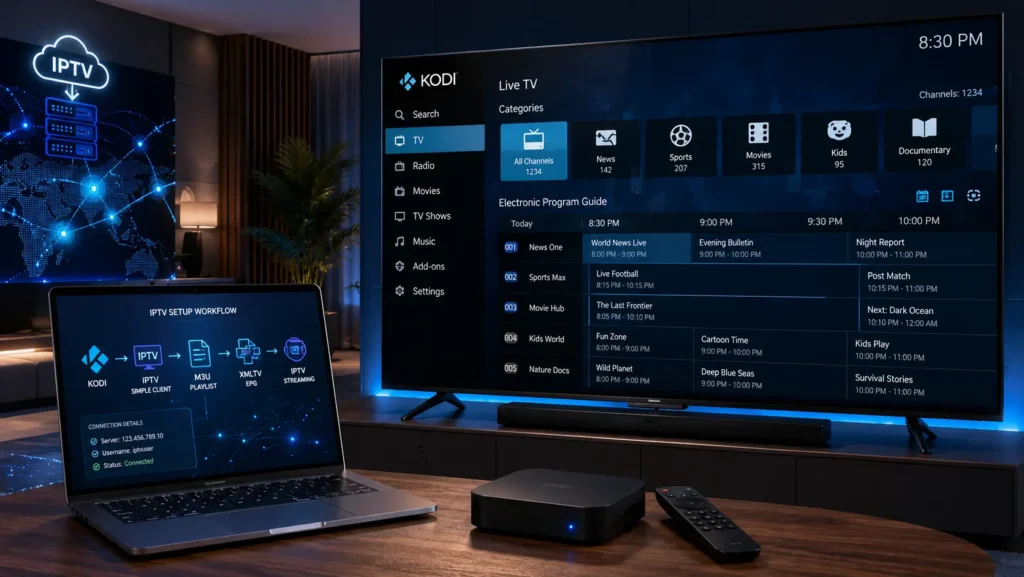
IPTV Source → M3U / Xtream Codes → IPTV Client → Kodi → Device Screen
Kodi IPTV Setup: What You Need Before Starting
Before setting up IPTV on Kodi, you need a few basic elements:
1. Kodi Application
Kodi is available on multiple platforms:
- Windows
- macOS
- Android
- Android TV
- Google TV
- Fire TV devices
- Linux
- Raspberry Pi
2. IPTV Connection Information
Depending on your IPTV provider, you may receive:
M3U Playlist
An M3U playlist contains streaming URLs and playlist information.
Example structure:
- Stream address
- Name
- Category information
- Metadata
Xtream Codes
Xtream Codes is another popular IPTV connection method that uses:
- Server URL
- Username
- Password
It allows applications to retrieve playlist information and EPG data more efficiently.
XMLTV EPG
EPG (Electronic Program Guide) provides:
- Program schedules
- Program descriptions
- Timeline information
How to Install IPTV on Kodi

The most common method is using the PVR IPTV Simple Client.
Step 1: Open Kodi Settings
Launch Kodi and go to:
Settings → Add-ons → Install from repository
Step 2: Enable IPTV Simple Client
Navigate to:
PVR Clients → PVR IPTV Simple Client
Then select:
Install
After installation, enable the client.
Step 3: Add IPTV Playlist
Open:
PVR IPTV Simple Client → Configure
You can usually add:
- M3U Playlist URL
- Local M3U file
After adding the playlist:
- Restart Kodi
- Wait for the playlist to load
Kodi will then display IPTV content through the Live TV section.
Kodi IPTV Simple Client Explained
The IPTV Simple Client Kodi add-on is one of the most commonly used solutions for IPTV integration.
It allows Kodi to read IPTV playlist information and display it in a traditional TV-style interface.
Features include:
- M3U playlist support
- Live TV categories
- EPG support
- Channel organization
- Program information
However, IPTV Simple Client is mainly focused on playlist-based IPTV and may not provide all advanced features found in dedicated IPTV apps.
Kodi M3U Playlist Setup
One of the most searched topics is:
How to add M3U Playlist to Kodi?
M3U is a playlist format that contains information about available streams.
A typical IPTV M3U setup requires:
- M3U URL
- Playlist file
- IPTV Simple Client configuration
The process:
- Open IPTV Simple Client settings.
- Select playlist location.
- Enter the M3U URL.
- Save changes.
- Restart Kodi.
Kodi will then update the playlist.
Kodi Xtream Codes Setup
Many IPTV users prefer Xtream Codes because it provides easier account management.
Xtream Codes information usually includes:
- Server address
- Username
- Password
Compared with a simple M3U URL, Xtream Codes can provide additional structured information such as:
- Categories
- Live TV organization
- VOD information
- EPG integration
However, Kodi does not natively work with Xtream Codes in the same way as dedicated IPTV applications. Users generally rely on compatible Kodi add-ons or integrations.
Kodi EPG Setup (Electronic Program Guide)

EPG improves the IPTV experience by adding a TV guide interface.
Instead of only seeing a list of streams, users can view:
- Program names
- Schedule times
- Current programs
- Upcoming programs
Kodi EPG usually works with:
- XMLTV files
- XMLTV URLs
A complete IPTV experience often combines:
M3U Playlist + XMLTV EPG + Kodi IPTV Client

Kodi IPTV Supported Devices
One of Kodi’s biggest advantages is its wide device compatibility.
Kodi IPTV on Firestick
Fire TV devices are among the most popular streaming devices.
Users often search:
- Kodi IPTV Firestick
- Kodi Fire TV Setup
- Install Kodi on Firestick
Kodi can provide a powerful media center experience on Fire TV devices.
Kodi IPTV on Android TV
Android TV is another popular platform for Kodi.
Benefits include:
- Large screen experience
- Remote control support
- Hardware decoding
- Google Play installation
Kodi IPTV on Android Box
Android TV boxes are commonly used for IPTV because they offer:
- More storage
- USB support
- Ethernet connection
- Custom configuration options
Kodi IPTV on Smart TV
Kodi availability depends on the Smart TV operating system.
Support varies between:
- Android TV
- Google TV
- Other Smart TV platforms
Some TVs may require an external streaming device.
Kodi IPTV vs Dedicated IPTV Players
Many users compare Kodi with dedicated IPTV applications.
Kodi Advantages
✅ Complete media center
✅ Supports many formats
✅ Customizable interface
✅ Large community
✅ Supports local and network media
Kodi Limitations
❌ IPTV setup can be more complicated
❌ Requires configuration
❌ Not designed only for IPTV
❌ Some advanced IPTV features may require additional tools
Kodi vs IPTV Smarters
IPTV Smarters is designed mainly for IPTV usage.
Kodi provides a broader media experience.
Choose Kodi if you want:
- Media center features
- Customization
- Local media support
Choose dedicated IPTV apps if you want:
- Simple IPTV setup
- Faster configuration
- IPTV-focused features
Kodi IPTV Features
A properly configured Kodi IPTV setup can offer:
Live TV
Watch live streaming through supported IPTV sources.
Electronic Program Guide
View schedules and program information.
Playlist Management
Organize IPTV playlists.
Multiple Media Sources
Combine IPTV with local media libraries.
Customization
Modify the interface with themes and add-ons.
Common Kodi IPTV Problems and Solutions
Kodi IPTV Not Working
Possible causes:
- Incorrect playlist URL
- Expired subscription
- Add-on problems
- Network issues
Solutions:
- Check playlist information
- Restart Kodi
- Update add-ons
- Verify internet connection
Kodi IPTV Buffering
Buffering can happen because of:
- Slow internet speed
- Server congestion
- Wi-Fi problems
- Device limitations
Solutions:
- Use a stable connection
- Check network performance
- Update Kodi
- Reduce unnecessary background processes
Kodi IPTV EPG Not Working
Possible reasons:
- Incorrect XMLTV URL
- Wrong timezone
- Playlist mismatch
Solutions:
- Verify EPG information
- Reload playlist
- Restart Kodi
Kodi IPTV Simple Client Not Loading
Try:
- Disable and enable the client
- Update Kodi
- Check playlist format
- Restart the device
Kodi IPTV Best Practices for Better Experience
For the best user experience:
Use a Compatible Device
A modern device with good hardware improves playback quality.
Maintain Updated Software
Keep:
- Kodi updated
- Add-ons updated
- Device firmware updated
Use Reliable Network Connection
For high-quality streaming:
- Ethernet is often better than weak Wi-Fi
- Stable bandwidth is important
Organize Your IPTV Setup
A clean setup with:
- Proper playlists
- EPG data
- Correct settings
creates a smoother experience.
Frequently Asked Questions About Kodi IPTV
What is Kodi IPTV?
Kodi IPTV is the use of Kodi media player with IPTV sources to stream internet-based television content.
Can Kodi play IPTV?
Yes, Kodi can play IPTV through compatible IPTV clients such as IPTV Simple Client.
Is Kodi free?
Yes, Kodi is free and open-source software.
Does Kodi support M3U?
Yes, Kodi can work with M3U playlists through compatible IPTV clients.
Does Kodi support Xtream Codes?
Kodi support depends on available add-ons and integrations.
Can I use Kodi IPTV on Firestick?
Yes, Kodi is commonly used on Firestick devices.
Is Kodi better than IPTV players?
It depends on your needs. Kodi offers more customization, while dedicated IPTV players often provide simpler IPTV management.
Final Thoughts
Kodi IPTV remains one of the most flexible ways to combine IPTV streaming with a powerful media center experience.
Its support for:
- M3U playlists
- IPTV Simple Client
- XMLTV EPG
- Live TV integration
- Multiple devices
makes it an attractive choice for advanced users.
However, Kodi requires more configuration compared with dedicated IPTV players. Users who enjoy customization and a complete entertainment platform will appreciate Kodi, while users looking for a simple IPTV-only experience may prefer specialized applications.
Understanding how Kodi IPTV, M3U, Xtream Codes, EPG, and IPTV players work together helps users create a smoother and more organized streaming setup.