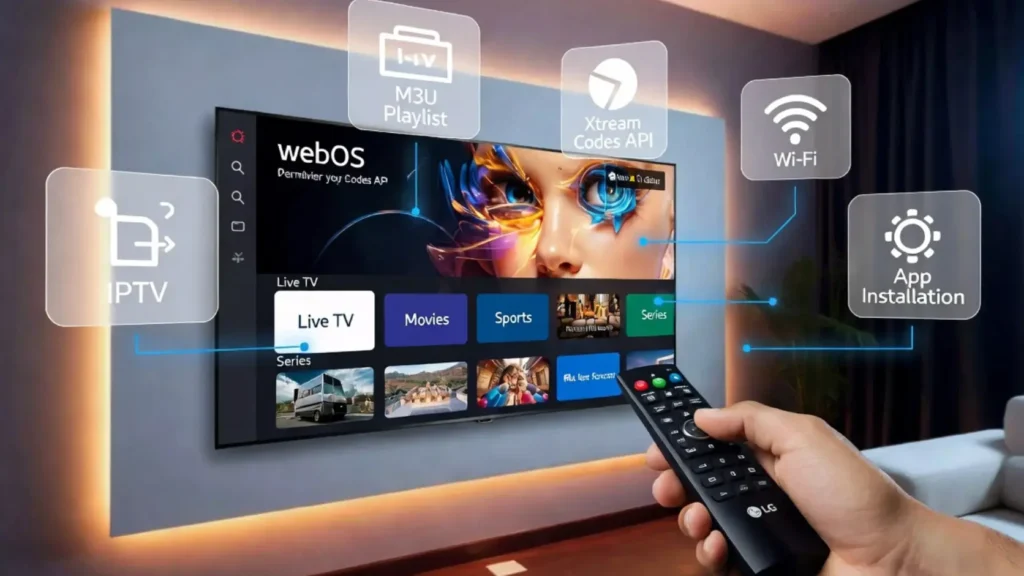
If you’re wondering how to setup IPTV on LG TV, you’re in the right place. LG Smart TVs running WebOS make it easy to enjoy IPTV services without needing an external streaming device.
Whether you want to use an M3U playlist, Xtream Codes, or another IPTV login method, this guide will walk you through the complete installation process.
Requirements Before You Start
Before beginning your LG TV IPTV setup, make sure you have:
- An LG Smart TV running WebOS
- A stable internet connection
- An active IPTV subscription
- IPTV login details:
- M3U Playlist URL
- Xtream Codes API
- Username & Password (if provided)
Best IPTV Apps for LG WebOS
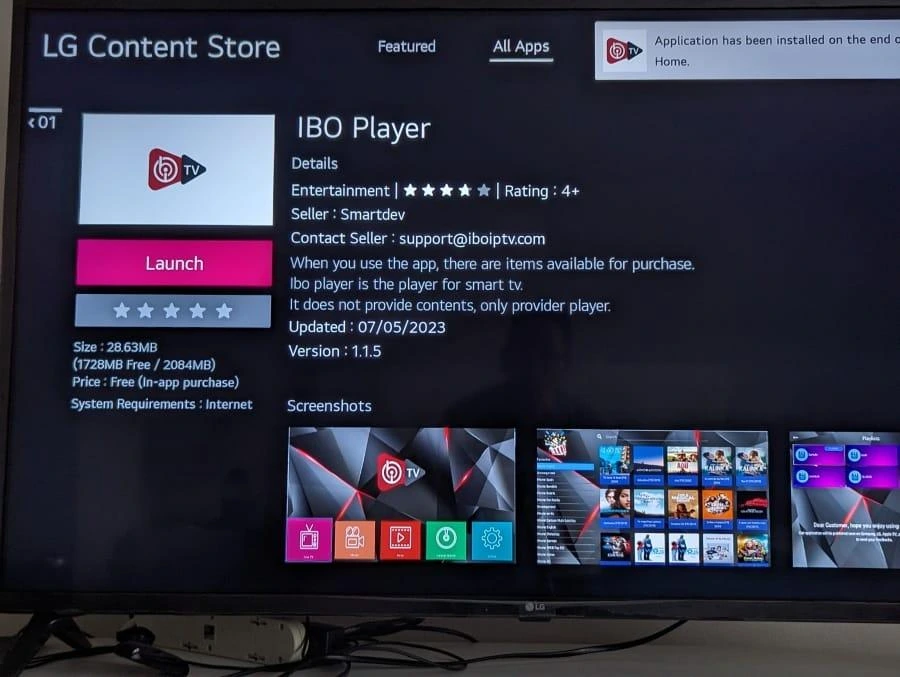
Here are some of the best IPTV apps for LG TV:
| IPTV App | M3U | Xtream Codes | Easy Setup |
|---|---|---|---|
| IPTV Smarters Pro | ✅ | ✅ | ⭐⭐⭐⭐⭐ |
| IBO Player | ✅ | ✅ | ⭐⭐⭐⭐⭐ |
| SET IPTV | ✅ | ✅ | ⭐⭐⭐⭐ |
| Smart IPTV | ✅ | Limited | ⭐⭐⭐⭐ |
| Duplex IPTV | ✅ | ✅ | ⭐⭐⭐⭐ |
These are among the most popular IPTV apps for WebOS.
Step 1: Open LG Content Store
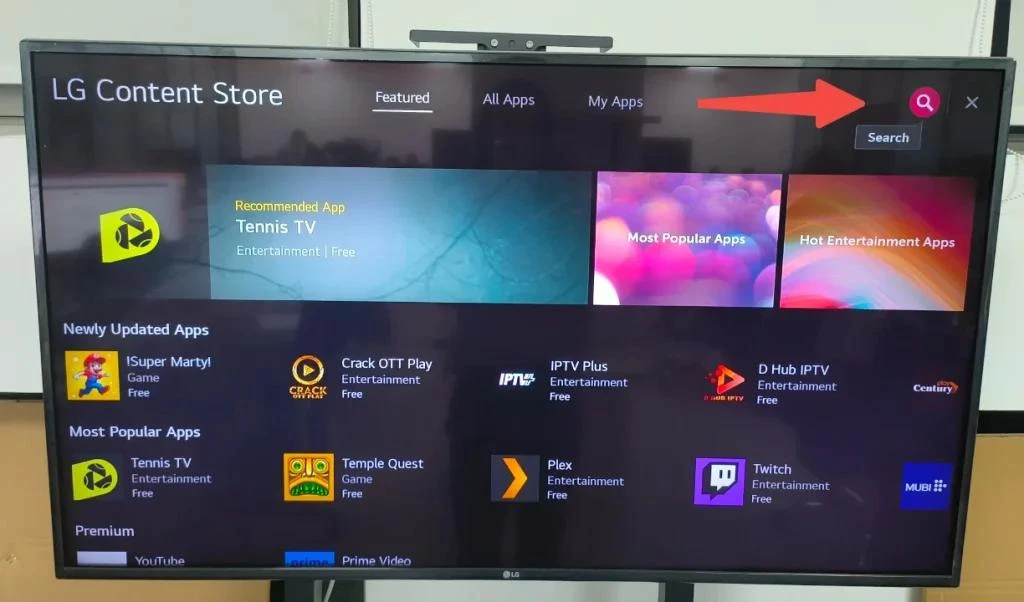
- Turn on your LG Smart TV.
- Press the Home button.
- Open LG Content Store.
- Search for your preferred IPTV player.
Popular searches include:
Install your chosen application.
Step 2: Install IPTV on LG Smart TV
After downloading the application:
- Open the IPTV app.
- Accept the terms if required.
- Wait for the activation screen.
You have now completed the install IPTV on LG TV process.
Step 3: Login Using Xtream Codes
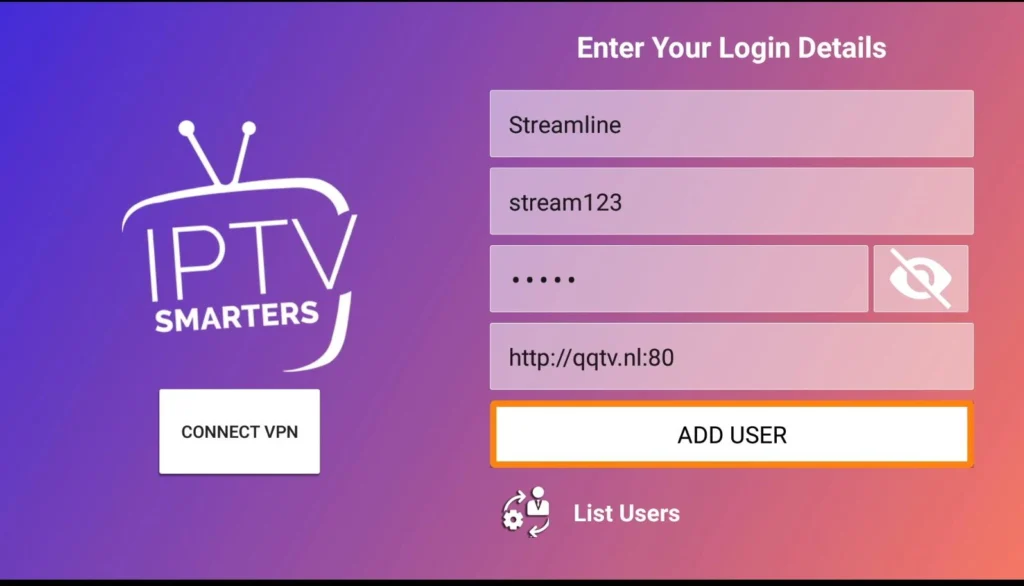
If your IPTV provider gives you Xtream Codes:
Enter:
- Server URL
- Username
- Password
Click Login.
Within seconds, your channels, movies, and series will load automatically.
This is the easiest method for Xtream Codes LG TV users.
Step 4: Add an M3U Playlist
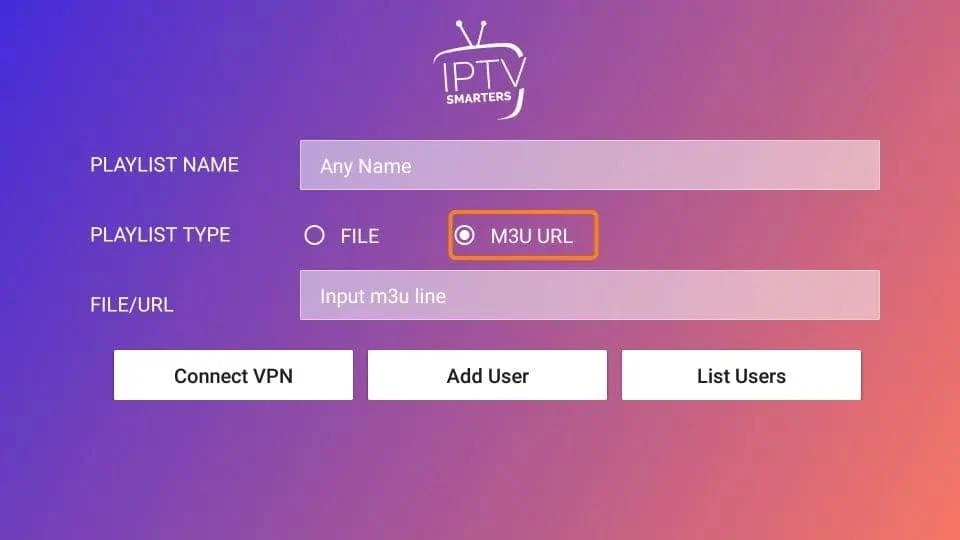
If you received an M3U playlist:
- Open the IPTV app.
- Select Load Playlist.
- Choose M3U URL.
- Paste your playlist link.
- Save and refresh.
You have successfully completed the add M3U playlist to LG TV process.
IPTV on LG WebOS
LG Smart TVs use WebOS, which supports many IPTV players directly from the LG Content Store.
Benefits include:
- Fast installation
- No Firestick required
- Simple interface
- Remote control support
- Excellent streaming quality
This makes IPTV on LG WebOS one of the easiest IPTV setups available.
Troubleshooting IPTV on LG TV
If IPTV isn’t working correctly, try these solutions:
App won’t load
- Restart your TV
- Check your internet connection
- Update the app
Playlist not loading
- Verify your M3U URL
- Confirm your IPTV subscription is active
Xtream Codes login failed
- Double-check:
- Server URL
- Username
- Password
Buffering
- Use a faster Wi-Fi connection
- Restart your router
- Lower video quality if necessary
Frequently Asked Questions
Can I install IPTV directly on LG Smart TV?
Yes. Most WebOS TVs support IPTV apps from the LG Content Store.
Which is the best IPTV app for LG TV?
Popular choices include:
- IPTV Smarters Pro
- IBO Player
- SET IPTV
- Smart IPTV
Can I use an M3U playlist?
Yes. Most IPTV apps allow you to upload an M3U playlist URL.
Does LG WebOS support Xtream Codes?
Yes. Many IPTV players support Xtream Codes login.
Final Thoughts
Setting up IPTV on an LG Smart TV is simple and only takes a few minutes. By installing a compatible IPTV player, then logging in with Xtream Codes or adding an M3U playlist, you’ll be ready to enjoy live TV, movies, and on-demand content directly on your LG WebOS device.
Whether you’re looking for how to setup IPTV on LG Smart TV, install IPTV on WebOS, or the best IPTV app for LG TV, following the steps above will ensure a smooth setup experience.