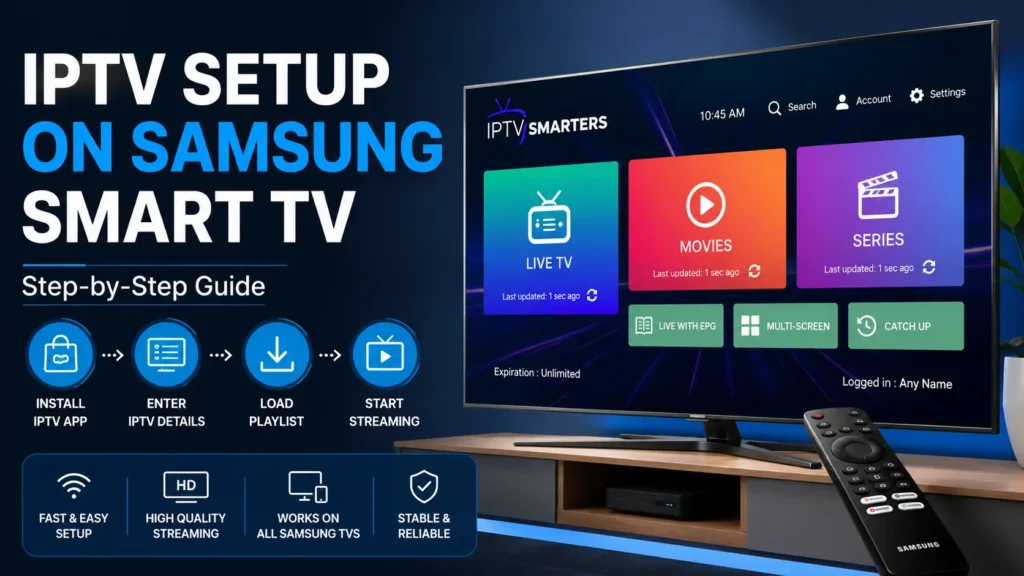
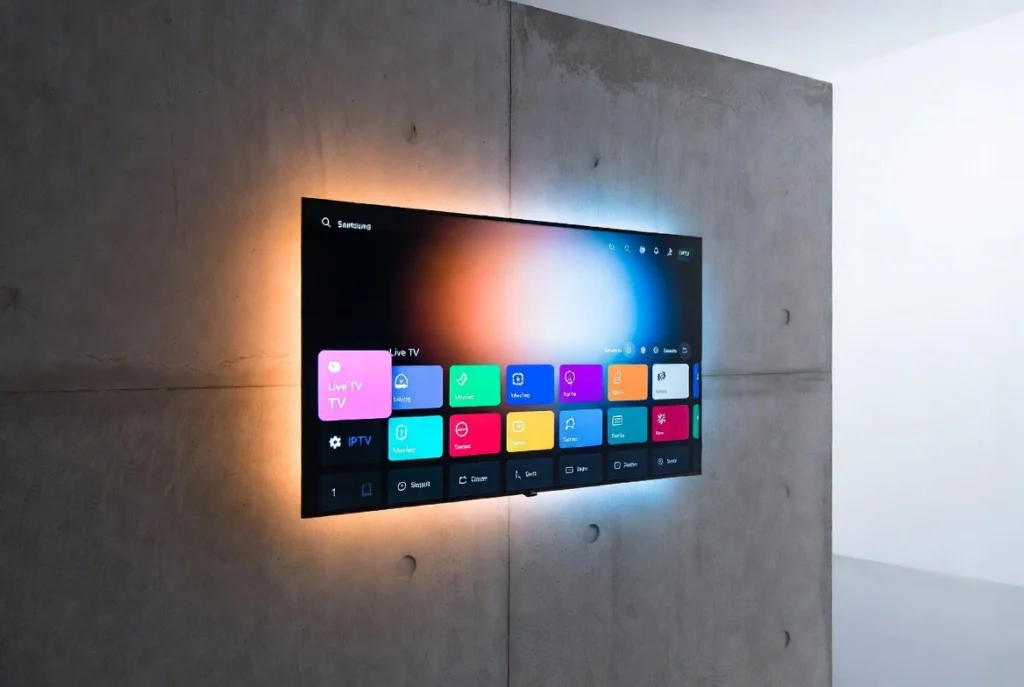
If you’re looking for an easy IPTV setup on Samsung Smart TV, this guide will walk you through the entire process. Samsung Smart TVs support several IPTV player apps, making it simple to stream live TV, movies, and series without needing an external streaming device.
Whether you have a newer Samsung Smart TV or an older model, this tutorial explains how to setup IPTV on Samsung Smart TV in just a few minutes.
What You’ll Need
Before starting your Samsung Smart TV IPTV setup, make sure you have:
- A Samsung Smart TV connected to the internet.
- An active IPTV subscription.
- Your IPTV login details (M3U Playlist or Xtream Codes).
- An IPTV player app compatible with Samsung Smart TVs.
Step 1: Connect Your Samsung TV to the Internet
Before installing any IPTV app:
- Press the Home button on your remote.
- Open Settings.
- Select Network.
- Connect your TV to your Wi-Fi or Ethernet network.
A stable internet connection provides smoother streaming and reduces buffering.
Step 2: Install an IPTV App
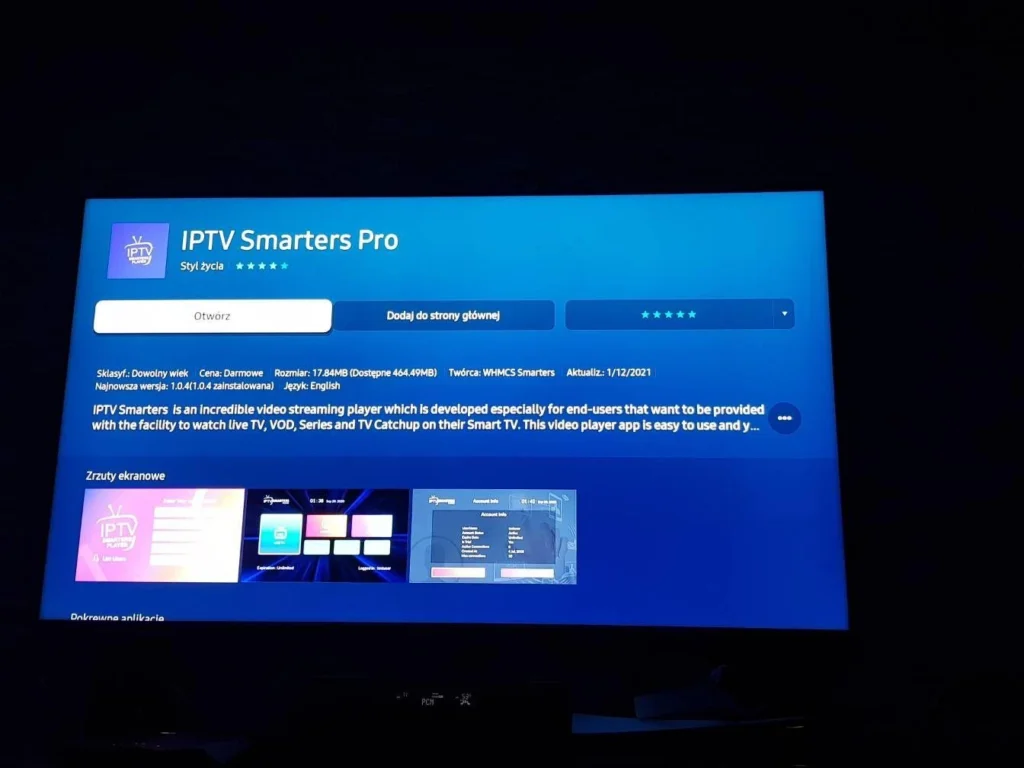
The next step in your Samsung IPTV setup is installing an IPTV player.
Open the Apps section on your Samsung Smart TV and search for a compatible IPTV player.
Popular IPTV apps include:
Download and install your preferred app.
Step 3: Open the IPTV App
After installation:
- Launch the IPTV app.
- Choose your preferred login method.
Most IPTV providers support one of the following:
- M3U Playlist URL
- Xtream Codes API
- Portal URL
Select the option provided by your IPTV service.
Step 4: Enter Your IPTV Subscription Details
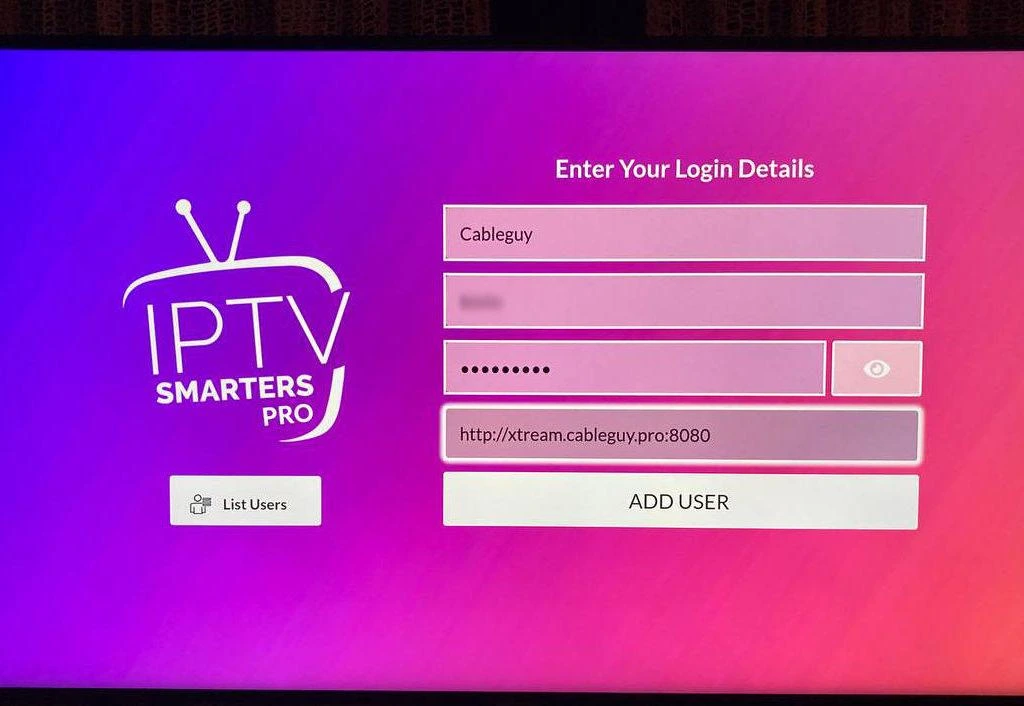
Enter the information exactly as provided by your IPTV provider.
Typically you’ll need:
- Username
- Password
- Server URL
Or simply paste your M3U Playlist URL.
After entering the details, select Add User or Login.
Step 5: Wait for the Playlist to Load
The IPTV app will now download:
- Live TV channels
- Movies
- TV Shows
- TV Guide (EPG), if included with your service
Depending on your internet speed, this may take a minute or two.
Once finished, your IPTV content is ready to watch.
How to Install IPTV on Samsung TV Successfully
To enjoy the best streaming experience:
- Use a fast internet connection (25 Mbps or higher recommended).
- Connect your TV via Ethernet if possible.
- Keep your Samsung TV software updated.
- Update your IPTV app regularly.
- Restart the TV occasionally to improve performance.
These simple tips help ensure a smooth Samsung Smart TV IPTV setup.
Troubleshooting IPTV on Samsung Smart TV
If your channels don’t load:
- Check your internet connection.
- Verify your IPTV login details.
- Restart the IPTV app.
- Restart your Samsung TV.
- Update the IPTV app to the latest version.
- Contact your IPTV provider if your subscription has expired.
Frequently Asked Questions
How to setup IPTV on Samsung TV?
Install an IPTV player from the Samsung App Store, enter your IPTV subscription details (M3U or Xtream Codes), and wait for your playlist to load.
How to setup IPTV on Smart TV?
Most Smart TVs follow the same process:
- Install an IPTV player.
- Enter your IPTV subscription details.
- Load your playlist.
- Start streaming.
Which IPTV app works best on Samsung Smart TV?
Popular choices include:
- IPTV Smarters Pro
- Smart IPTV
- IBO Player
- SET IPTV
The best option depends on your IPTV provider and the app they recommend.
Can I use IPTV without an external streaming device?
Yes. Modern Samsung Smart TVs can run compatible IPTV apps directly, so no Firestick or Android TV box is required.
Final Thoughts
Completing an IPTV setup on Samsung Smart TV is quick and beginner-friendly. After installing a compatible IPTV player and entering your subscription details, you’ll have access to live TV, movies, and series directly from your Samsung TV.
Whether you’re learning how to setup IPTV on Samsung Smart TV, how to setup IPTV on Samsung TV, or how to install IPTV on Samsung TV, the steps above will help you get started in just a few minutes.